kaedeasset/MomijiUI 0.1.0
版Version: 0.1.0
言語: 日本語Language: English
目次Contents

MomijiUI 導入ガイド

この説明書は MomijiUI 0.1.0(2026-10-21)のものです。

画面を JSON で書き、Unreal Engine(UE)とブラウザで同じ配置・同じ操作で描く、無料の UI フレームワークです。このガイドは、Fab で入れてから見本のカウンターを UE で動かし、自分の画面を 1 つ書いて検査するまでの手順です。
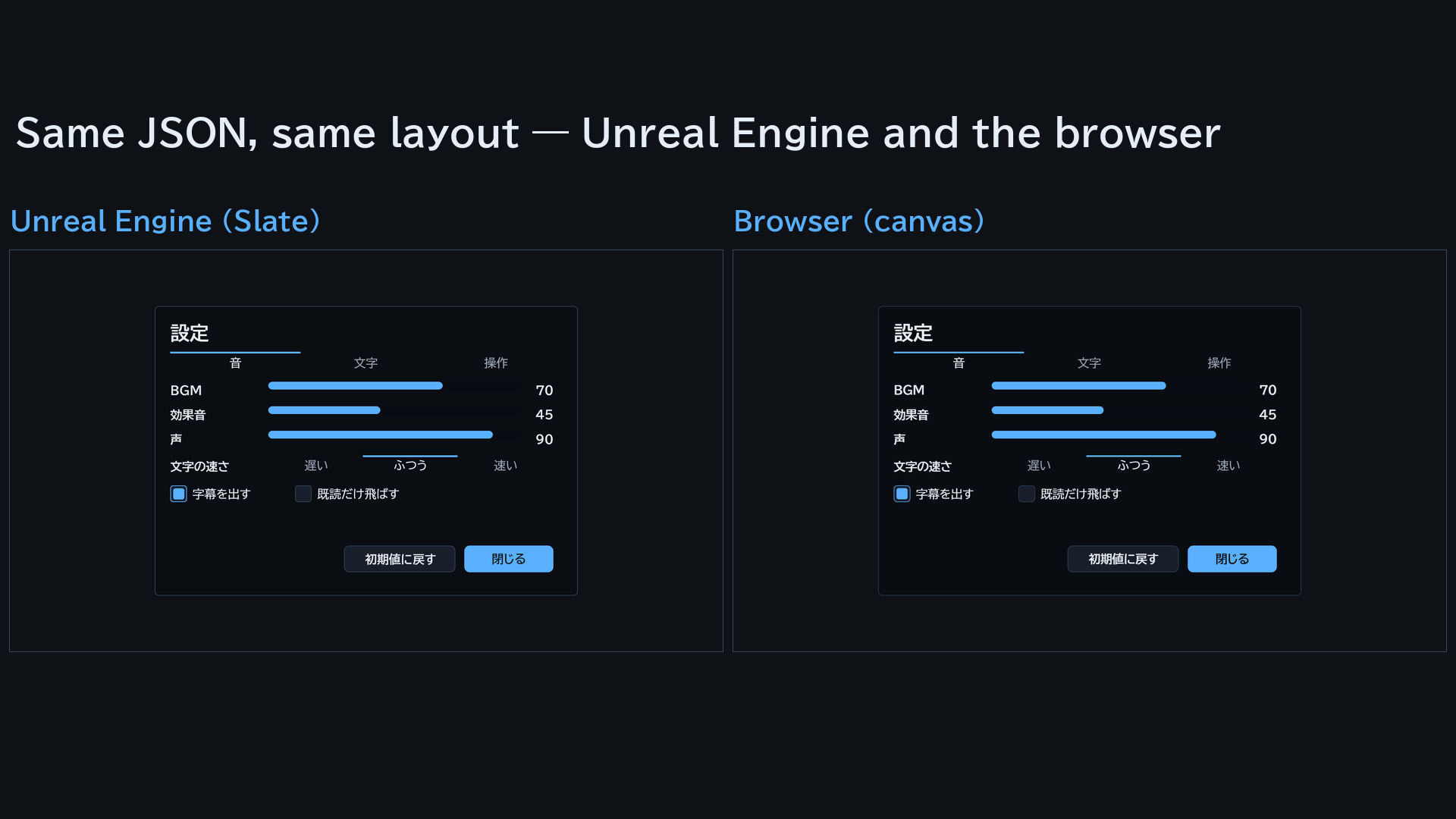
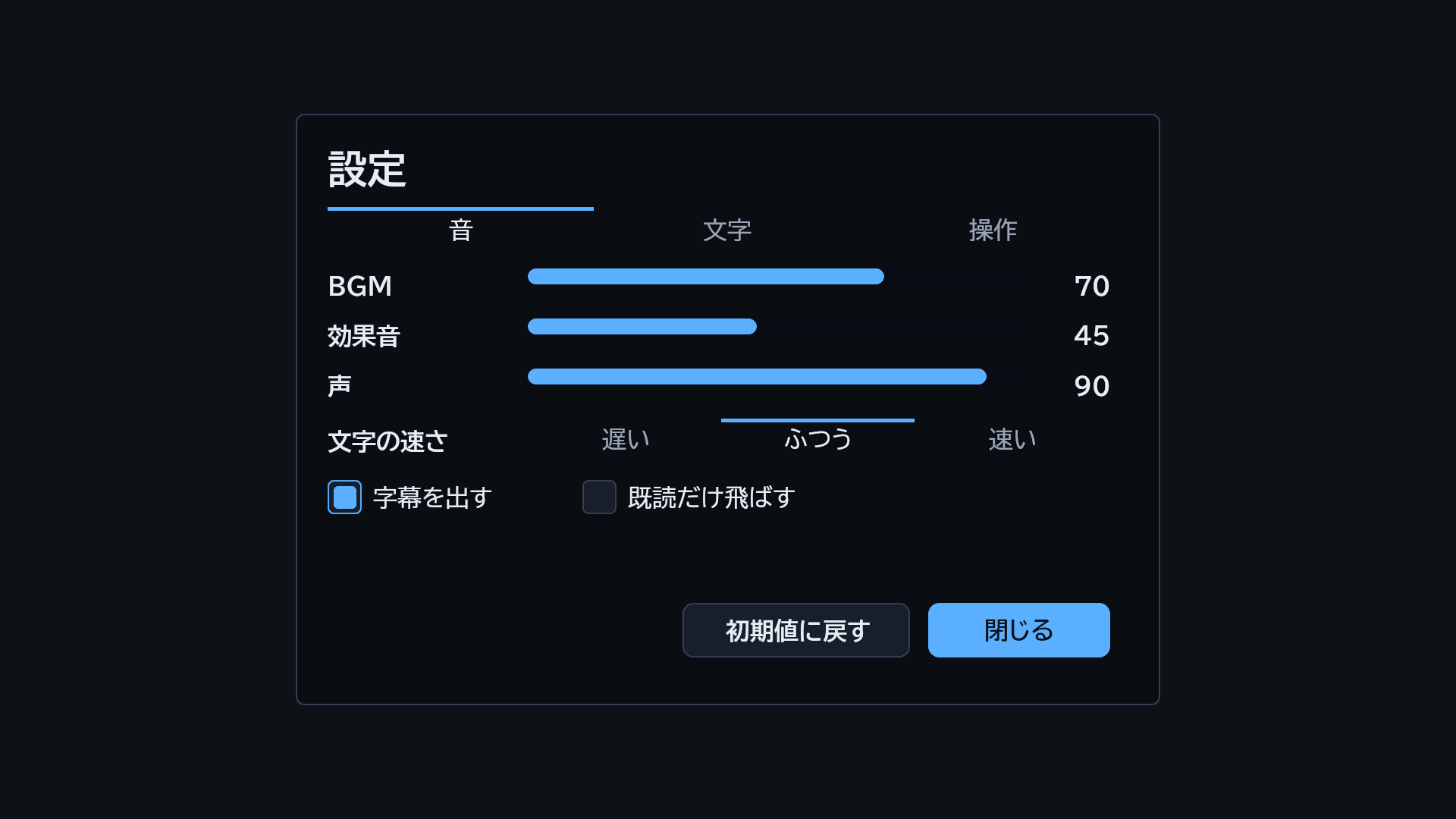
同じ設定の画面 JSON を、左は UE(Slate)、右はブラウザ(canvas)で描いた所


目次

  1. はじめての一本道(入れてから検査するまで)
  2. このプラグインでできること
  3. 要るもの
  4. あなたのプログラムの仕事(4 つ)
  5. UE で使う
  6. ブラウザで使う
  7. UE とブラウザで違う所
  8. まだできないこと
  9. 困ったとき

1. はじめての一本道(入れてから検査するまで)

UE で MomijiUI を初めて使う人が、Fab で入れてから、自分の画面を 1 つ書いて検査するまでの順番です。上から順に進めれば、ほかの章を読まずに最後まで行けます。ほかの章は、自分のゲームに組み込むときに、必要な所だけ読んでください。

先に全体の順番です。 MomijiUI は単独で起動するアプリではなく、あなたの UE のプロジェクトに入れて、C++ から使う部品です。エディタのメニューや Blueprint の部品はありません。このガイドでは、プログラムを立ち上げることを「起動する」(ランチャー・UE)、動いているプログラムの中で窓や画面を出すことを「開く」「出す」と書き分けます。

順 やること どこで 終わると
1.1 Fab で MomijiUI を入れる Fab とランチャー UE に MomijiUI が入る
1.2 UE 5.8 と Visual Studio を入れる ランチャーと Microsoft のインストーラー C++ のプロジェクトを作る準備が整う
1.3 C++ のプロジェクトを作り、MomijiUI を有効にする UE のプロジェクトブラウザとエディタ MomijiUI の入ったプロジェクトが開く
1.4 見本のカウンターを UE で動かす UE のエディタ(プレイ) 押すと数が増える画面が出る
1.5 同じ JSON がブラウザで動くのを見る ブラウザ 同じ画面がブラウザでも動く
1.6 自分の画面を 1 つ書いて出す テキストエディタと UE 自分の画面の絵が撮れる
1.7 画面 JSON を検査する Visual Studio と UE のエディタ 誤りが場所つきで出る

2 回目からは、1.3 で作ったプロジェクトを開くだけです。1.1〜1.3 は最初の 1 回だけです。

1.1 Fab で MomijiUI を入れる

  1. Epic Games のアカウントで Fab(fab.com)にサインインし、MomijiUI のページで「ライブラリに追加」します。無料です。
  2. Epic Games Launcher(ランチャー)の Unreal Engine → ライブラリ の Fab の欄に MomijiUI が並びます。エンジンにインストール を押し、5.8 を選びます。プラグインは <UE のフォルダ>\Engine\Plugins\Marketplace\ の下の MomijiUI のフォルダ(MomijiUI.uplugin のあるフォルダ)に入ります。このフォルダを、以下「プラグインのフォルダ」と書きます。

UE 5.8 がまだ入っていなければ、先に 1.2 の手順 1 を済ませてから戻ってください。

1.2 UE 5.8 と Visual Studio を入れる

  1. ランチャーの Unreal Engine → ライブラリ で、エンジンのバージョンの + を押し、5.8 を選んで インストール します。
  2. Microsoft のサイトから Visual Studio Community(無料)のインストーラーを取ってきて起動し、ワークロードの C++ によるゲーム開発 に印を付けて入れます。版は 2022 の最新(17.14)か 2026 の最新にします(UE 5.8 は、古い版の一部〔2022 の 17.13 以前・2026 の初めの版〕を組み立てに使いません。もう入っているなら Visual Studio Installer の 更新 を押します)。MomijiUI は C++ から使うので、プロジェクトを C++ で作ります(1.3)。そのために要ります。

1.3 C++ のプロジェクトを作り、MomijiUI を有効にする

  1. ランチャーで 5.8 の 起動 を押します。
  2. プロジェクトブラウザで ゲーム → 空のプロジェクト(Blank)を選び、C++ を選びます。プロジェクトの名前は英数字と _ だけ(例 MyUi)にして 作成 を押します。Visual Studio がプロジェクトのコードを組み立て、エディタが開きます。
  3. エディタの 編集 → プラグイン で MomijiUI を探し、印を付けて有効にします。MomijiUI はいまベータ版なので、ベータ版の注意の窓が出ます。はい を押して続けます。
  4. 「再起動が必要」と出るので、エディタを開き直します。同じプロジェクトを開きます。
  5. エディタを閉じます(1.4 で、引数をつけて起動し直すため)。

プラグインはエンジンに入っただけでは使えず、プロジェクトごとに有効にします。有効にするのは、プロジェクトを作った最初の 1 回だけです。

1.4 見本のカウンターを UE で動かす

見本は「押した回数」と「名前の一覧」の小さな画面です。画面の形はプラグインのフォルダの Examples/counter.json、動かすコードはプラグインに入っている見本のウィジェット(SMomijiUICounterExample)です。起動引数 -KaedeUiExample=counter をつけてエディタを起動すると、プレイを始めたときにその画面がゲームの画面の上に出ます。

  1. PowerShell を開き、次の 1 行を打ちます(UE の場所とプロジェクトの場所は、あなたのものに替えます。UE の場所は、ランチャーの Unreal Engine → ライブラリ で 5.8 の 起動 の横の ▼ → オプション に出るインストール先です。その中の Engine\Binaries\Win64\UnrealEditor.exe を使います)。
    & "C:\Program Files\Epic Games\UE_5.8\Engine\Binaries\Win64\UnrealEditor.exe" "C:\UnrealProjects\MyUi\MyUi.uproject" -KaedeUiExample=counter
    
  2. エディタが開いたら、上の段の ▶(プレイ) を押します。ゲームの画面の上に、見本のカウンターが出ます。
  3. +1 を押すと回数が増えます。1 回以上で リセット が押せるようになり、5 回で「5 回押した」が出ます。下の欄に名前を打って Enter(か 追加)を押すと、一覧に足されます。日本語入力も使えます。
  4. 部品の外を押してマウスの矢印が消えたら、Shift+F1 で戻ります(ゲームがマウスを取ったため)。Esc でプレイを止めます。

見本の画面が出るのは、その起動の最初のプレイの 1 回だけです。もう一度見るときは、エディタを閉じて 1. からやり直します。

1.5 同じ JSON がブラウザで動くのを見る

MomijiUI には、同じ画面 JSON をブラウザの <canvas> に描くブラウザ版があります。

  1. ブラウザで説明書の Web のトップ https://momiji.kaedeasset.com/ を開きます。
  2. ページの中に、1.4 と同じ counter.json を描いたカウンターが動いています。+1・リセット・名前の欄が、1.4 と同じ位置で同じように動くことを確かめます。
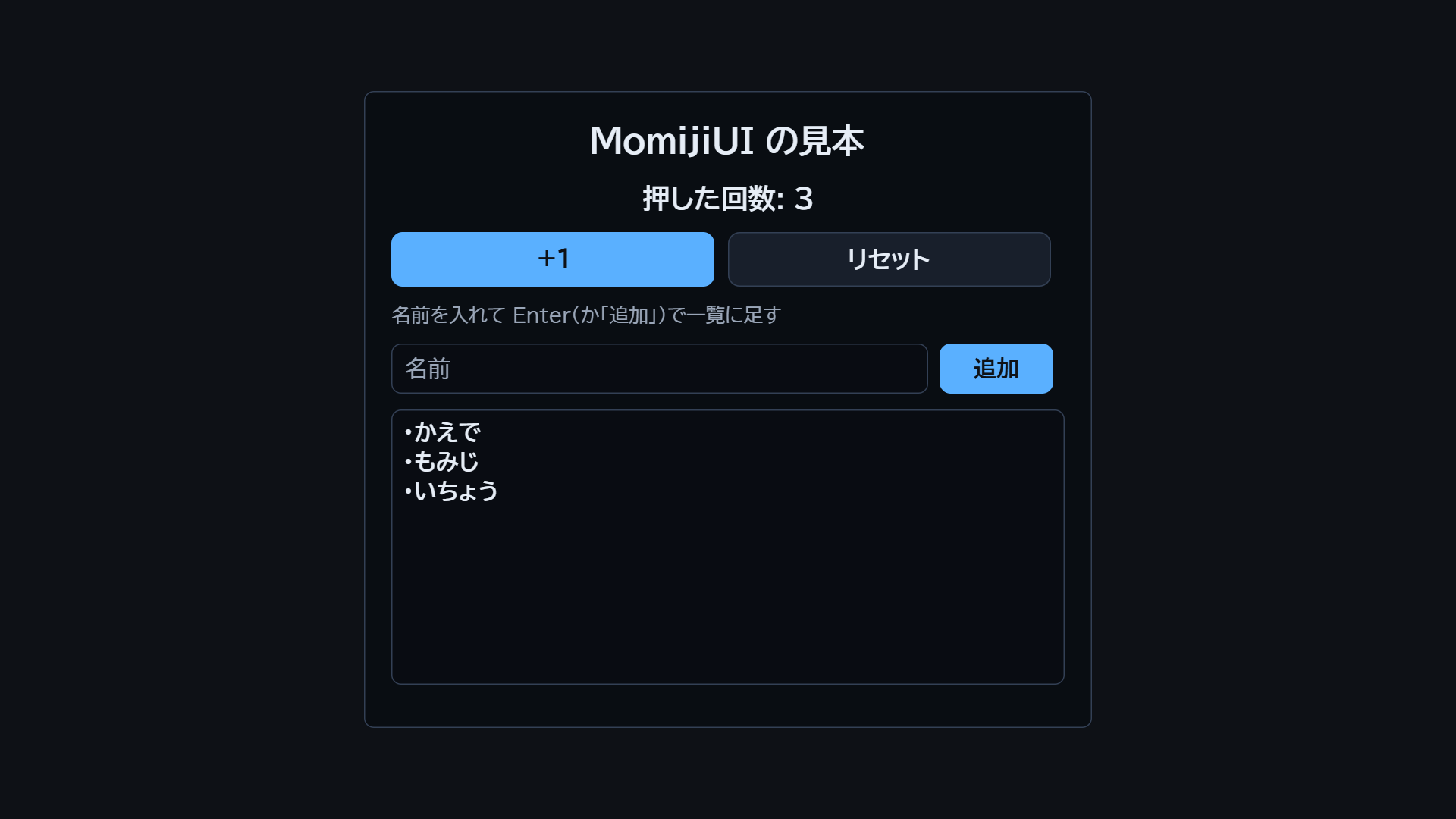
見本のカウンター(ブラウザ。回数 3・名前 3 つの所)

ブラウザ版の配布物(自分の HTML から読むファイル)は、GitHub の Releases から取れます(§6)。

1.6 自分の画面を 1 つ書いて出す

文字(Label)とボタン(Button)の 2 つを持つ画面を書き、UE で絵を 1 枚撮ります。

  1. プロジェクトのフォルダ(MyUi.uproject のあるフォルダ)に UI というフォルダを作り、その中に hello.json を次の中身で作ります。文字コードは UTF-8 にします。
    {
     "bind": { "strings": { "name": "MomijiUI" } },
     "root": {
      "type": "VerticalLayout", "anchor": "center", "w": 400, "h": 200, "pad": 20, "gap": 12,
      "children": [
       { "type": "Label", "text": "こんにちは {name}", "h": 32, "fontSize": 20, "align": "center" },
       { "type": "Button", "text": "OK", "action": "ok", "h": 44 }
      ]
     }
    }
    
    • root の中が画面です。部品は type で決まり、children で入れ子にします。
    • 画面は 1280×720 として書きます。anchor: "center" で真ん中に寄せます。
    • {name} は描くときに渡す値に置き換わります。ここでは bind に書いた値(MomijiUI)で描きます。
    • action は、押されたときにあなたのプログラムへ届く文字列です。
  2. エディタを閉じ、PowerShell で次の 1 行を打ちます。
    & "C:\Program Files\Epic Games\UE_5.8\Engine\Binaries\Win64\UnrealEditor.exe" "C:\UnrealProjects\MyUi\MyUi.uproject" -game -ResX=1280 -ResY=720 -KaedeUiShot=UI/hello.json
    
    ゲームの窓が開き、自分の画面を描いて 1 枚撮り、窓が閉じます。新しいプロジェクトの最初の起動は、窓が出るまでに 1 分ほどかかることがあります(シェーダーの準備)。窓が閉じるまで待ちます。
  3. プロジェクトのフォルダの Saved\Screenshots\WindowsEditor\MomijiUI.png を開きます。真ん中の板に「こんにちは MomijiUI」と OK のボタンが写っていれば、書けています。

-KaedeUiShot に渡す場所は、プロジェクトのフォルダからの相対か、絶対の場所です。

1.7 画面 JSON を検査する

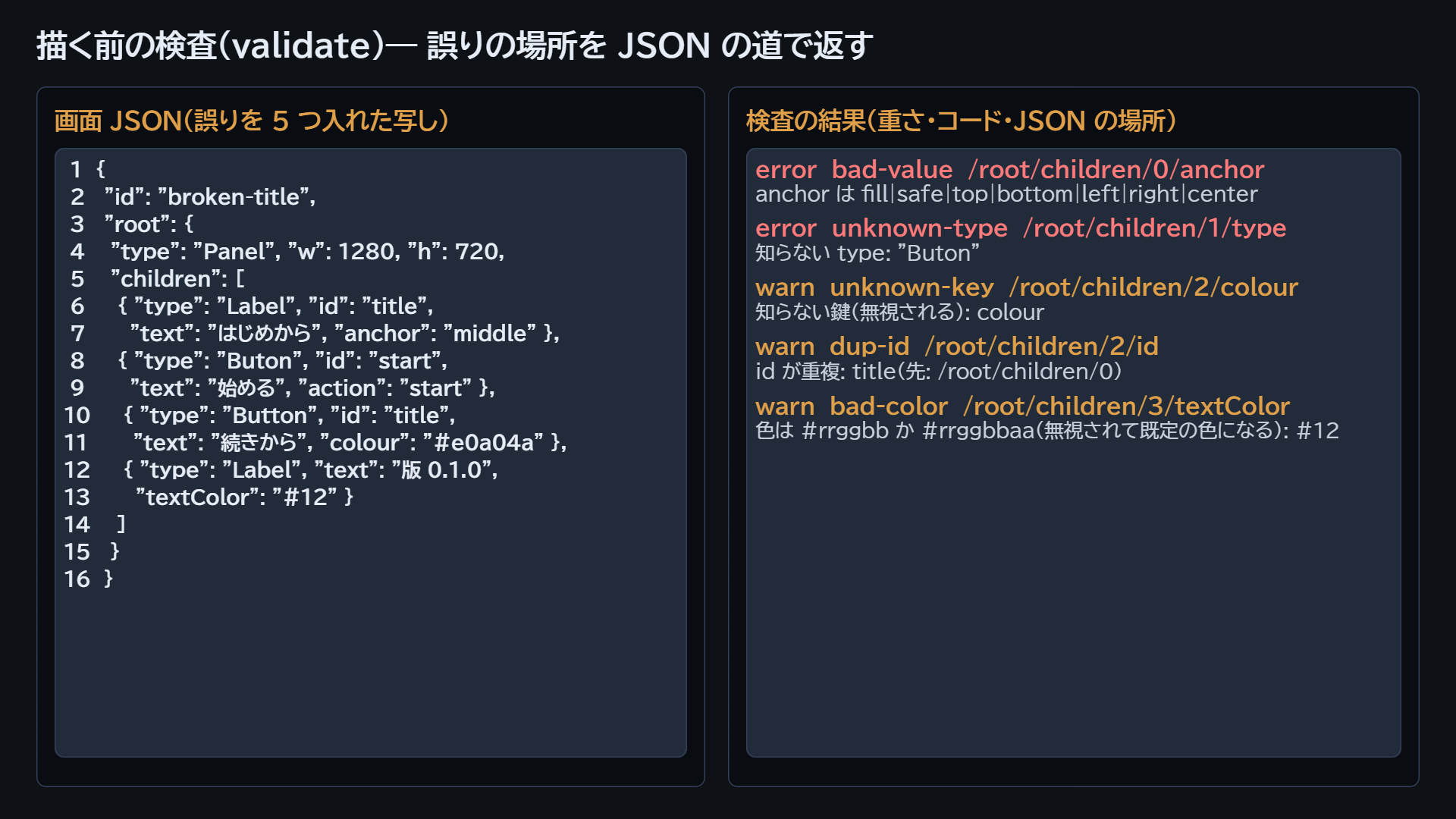
書き間違い(知らない部品・綴り違いの鍵・型違い・同じ id)は、描く前に MomijiUI の検査(診断)で見つけます。検査はプラグインの関数 KaedeCore::ValidateScreenJson です。エディタの下の欄から呼べるように、プロジェクトに 1 つファイルを足します。

  1. Visual Studio で、1.3 で作られた MyUi.sln(プロジェクトのフォルダにあります)を開きます。
  2. <プロジェクトのフォルダ>\Source\MyUi\MyUi.Build.cs の PublicDependencyModuleNames の行に "MomijiUICore" を足します。
    PublicDependencyModuleNames.AddRange(new string[] { "Core", "CoreUObject", "Engine", "InputCore", "EnhancedInput", "MomijiUICore" });
    
    ({ … } の中は、あなたのファイルに元からある名前のまま、最後に "MomijiUICore" を足します。)
  3. 同じフォルダ(<プロジェクトのフォルダ>\Source\MyUi\)に、エクスプローラーかメモ帳で MomijiCheck.cpp を作り、次の中身を貼って UTF-8 で保存します(Visual Studio の「新しい項目の追加」は既定の置き場が Intermediate の下になることがあり、そこに置くと組み立てに入りません)。
    #include "CoreMinimal.h"
    #include "HAL/IConsoleManager.h"
    #include "Misc/FileHelper.h"
    #include "Misc/Paths.h"
    #include "MomijiUICore.h"
    
    // エディタの下の欄で「Momiji.Check UI/hello.json」と打つと、画面 JSON の診断を出力ログに出す
    static FAutoConsoleCommand GMomijiCheck(
    	TEXT("Momiji.Check"),
    	TEXT("Momiji.Check <画面 JSON(プロジェクトのフォルダからの相対)>"),
    	FConsoleCommandWithArgsDelegate::CreateLambda([](const TArray<FString>& Args)
    	{
    		if (Args.Num() < 1) { UE_LOG(LogTemp, Warning, TEXT("Momiji.Check <画面 JSON>")); return; }
    		FString Json;
    		if (!FFileHelper::LoadFileToString(Json, *(FPaths::ProjectDir() / Args[0])))
    		{
    			UE_LOG(LogTemp, Error, TEXT("読めない: %s"), *Args[0]);
    			return;
    		}
    		const auto Diags = KaedeCore::ValidateScreenJson(TCHAR_TO_UTF8(*Json));
    		for (const kaedevn::ui::UiDiagnostic& D : Diags)
    		{
    			UE_LOG(LogTemp, Warning, TEXT("%s %s %s %s"), UTF8_TO_TCHAR(D.severity.c_str()), UTF8_TO_TCHAR(D.code.c_str()),
    				UTF8_TO_TCHAR(D.path.c_str()), UTF8_TO_TCHAR(D.message.c_str()));
    		}
    		UE_LOG(LogTemp, Display, TEXT("Momiji.Check: %s の診断は %d 件"), *Args[0], (int32)Diags.size());
    	}));
    
  4. Visual Studio の上の段で構成が Development Editor・Win64 になっていることを確かめ、ビルド → ソリューションのビルド を押します。最後に「1 正常終了、0 失敗」と出れば組み立てられています。
  5. MyUi.uproject を開いてエディタを起動し、ウィンドウ → 出力ログ を開きます。下の欄(Cmd)に Momiji.Check UI/hello.json と打って Enter を押します。出力ログに「Momiji.Check: UI/hello.json の診断は 0 件」と出れば、誤りはありません。
  6. 誤りが見つかる様子も見ます。hello.json の "Label" を "Labl" に書き換えて保存し、もう一度 Momiji.Check UI/hello.json を打ちます。error unknown-type /root/children/0/type … の 1 行が出ます(重さ・コード・場所・説明の順)。"Label" に戻して保存すると、0 件に戻ります。

検査が返すもの。左は誤りを 5 つ入れた画面 JSON、右はその診断(重さ・コード・場所・説明)。ブラウザの検査の結果を画面に描いたもの

ここまでで一本道は終わりです。自分のゲームに組み込むときは §4 と §5 を読んでください。部品と鍵の全部を引く先は、このガイドの冒頭にあります。


2. このプラグインでできること

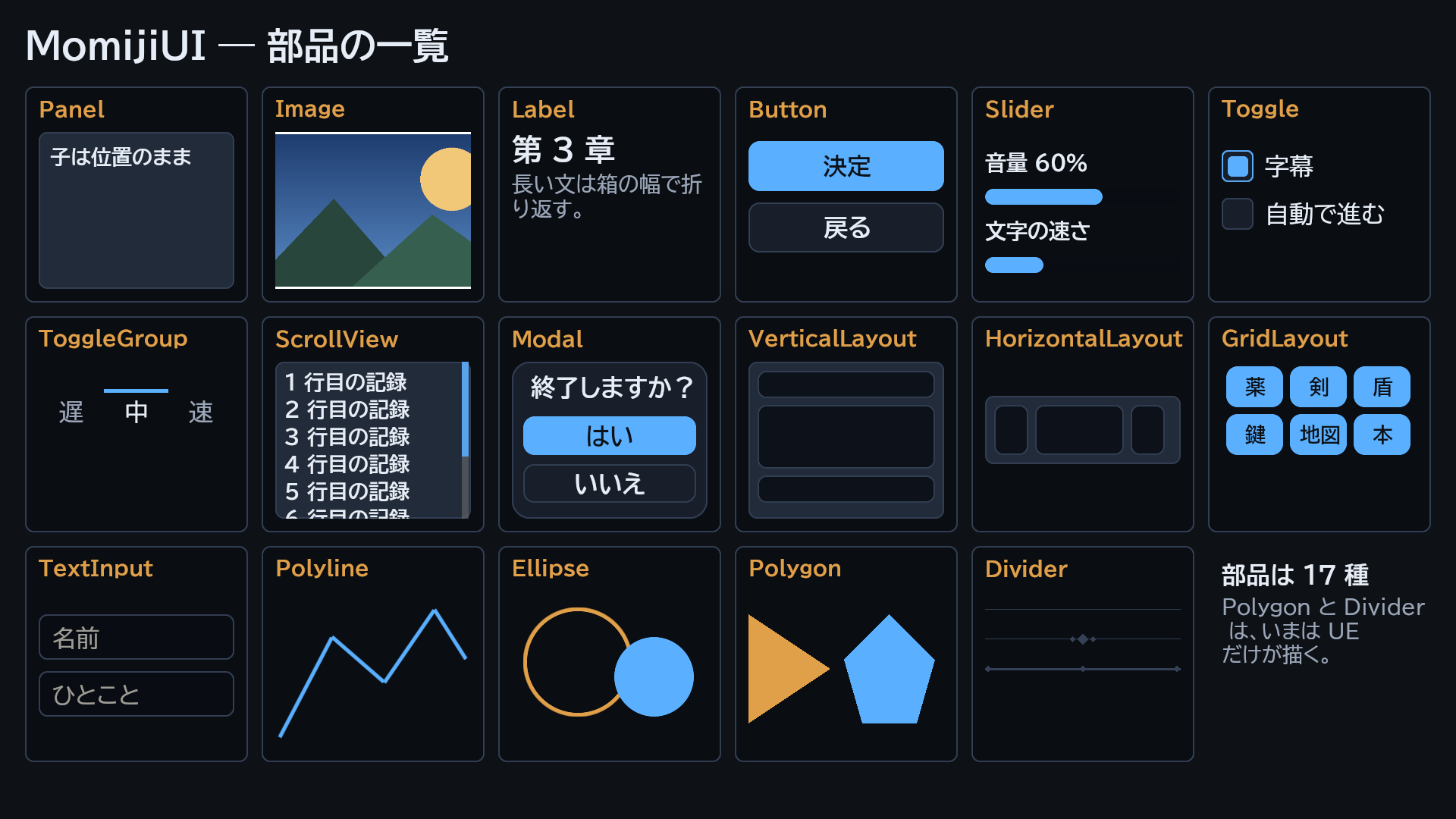
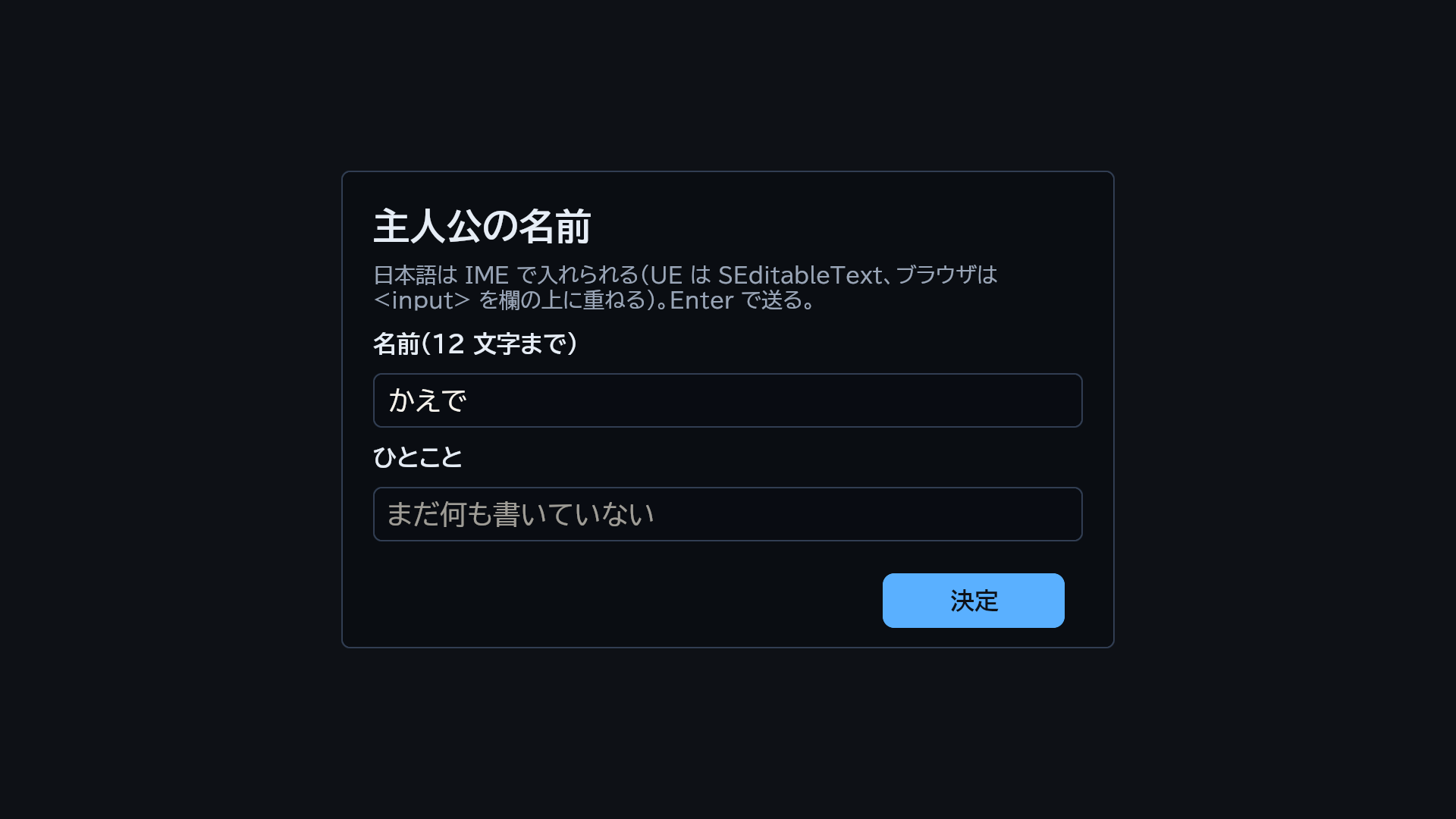
部品 17 種(UE) 文字欄に日本語を打った所(UE)
部品 17 種を 1 枚に並べた画面 文字欄に「かえで」を打った所
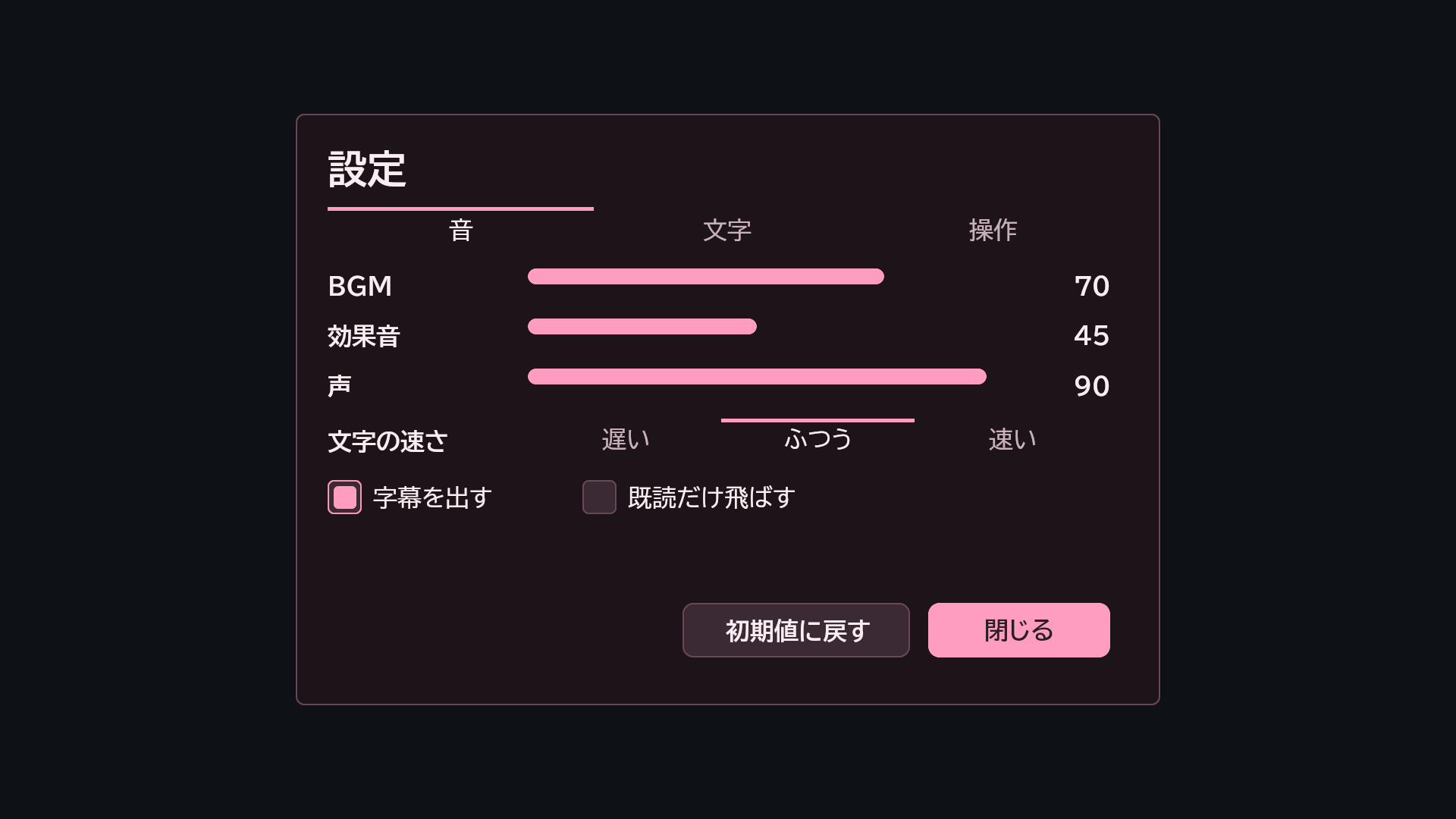
テーマ atelier テーマ midnight テーマ sakura
内蔵テーマ atelier の設定の画面 内蔵テーマ midnight の設定の画面 内蔵テーマ sakura の設定の画面
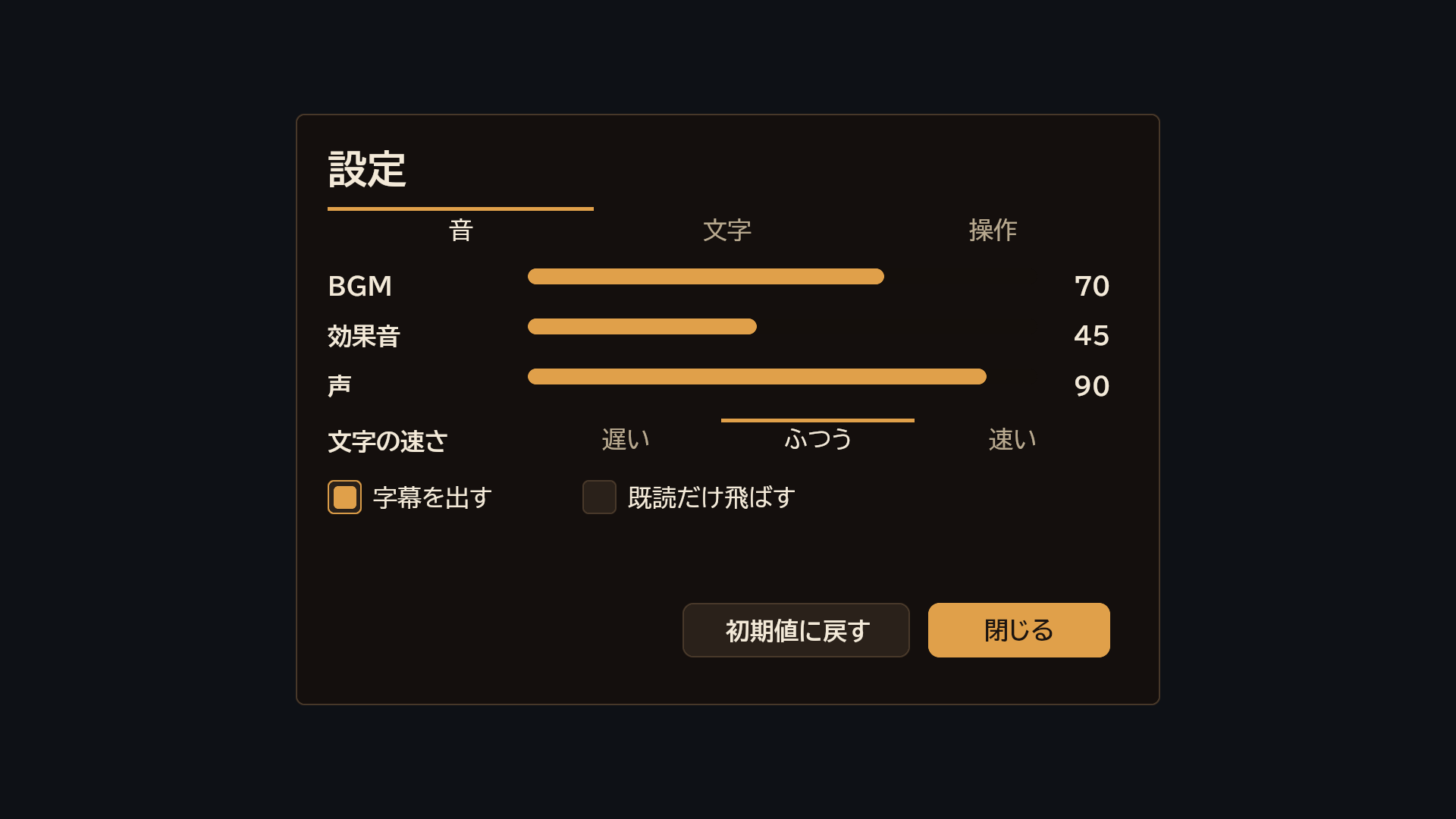
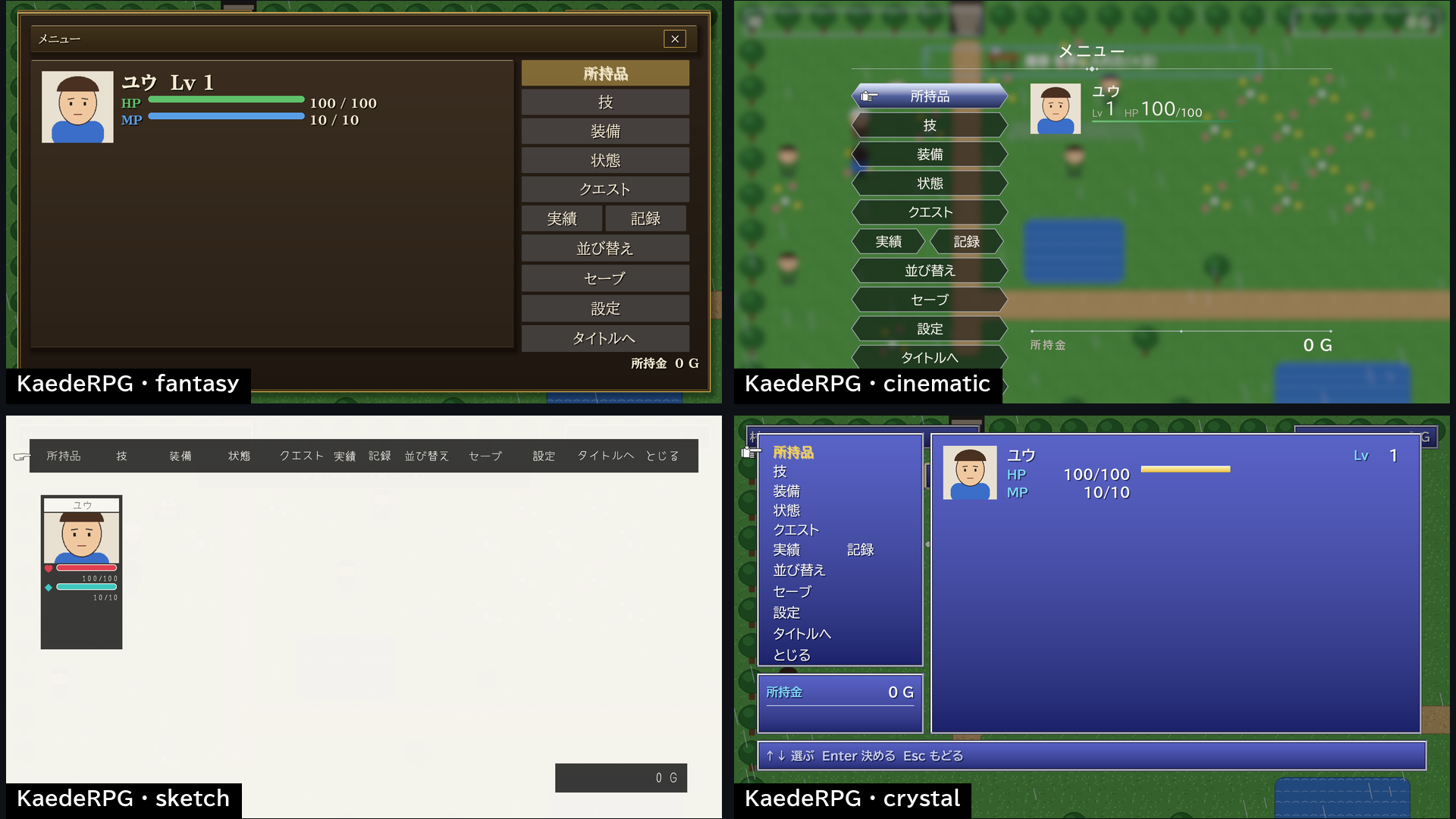
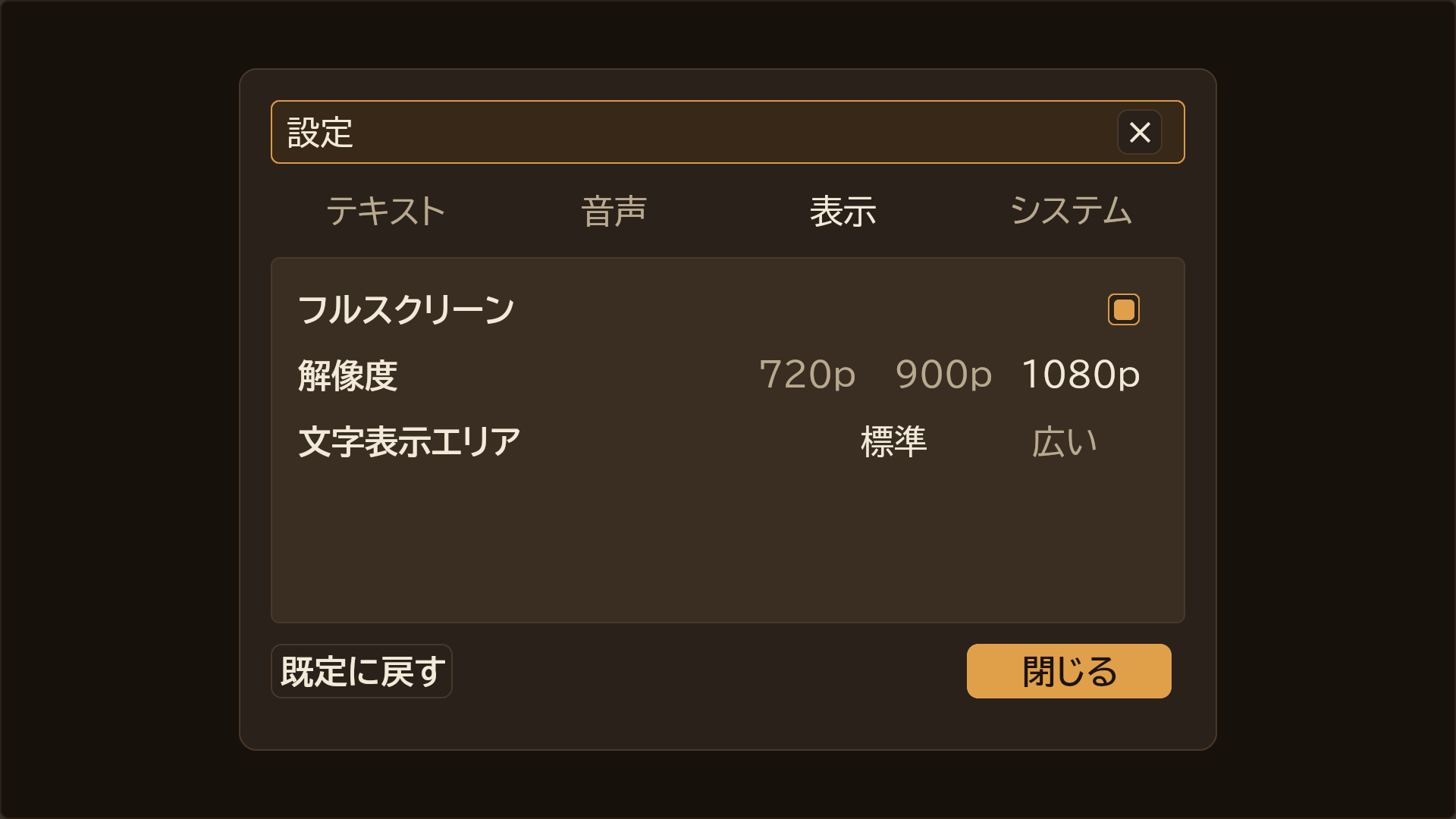
KaedeRPG のメニュー(テーマ 4 つ) KaedeVN のコンフィグ
KaedeRPG のメニューを 4 つのテーマで描いた所 KaedeVN のコンフィグの画面

3. 要るもの

もの 版・条件
Unreal Engine 5.8
OS Windows(確かめているのは Windows だけです)
Visual Studio 2022 の最新(17.14)か 2026 の最新。ワークロード「C++ によるゲーム開発」
プロジェクト C++ のプロジェクト(MomijiUI は C++ から使います。Blueprint の部品はありません)
ブラウザ版を使うとき 静的な HTTP のサーバー(file:// では書体と fetch が働きません)。確かめているのは Windows の Chrome(ほかに Chromium・Firefox・WebKit)

4. あなたのプログラムの仕事(4 つ)

UE でもブラウザでも、あなたのプログラムがすることは同じ 4 つです。

  1. 画面 JSON を読む(一度だけ)。
  2. 状態から値を作って描く。 文字・数・一覧を渡します。
  3. 押された動作(action)で状態を変える。 action の意味はあなたが決めます。
  4. 描き直す。 2 に戻ります。

入力(押す・ホイール・スクロール・スライダーのドラッグ・文字欄の編集・日本語入力)は MomijiUI が受け持ちます。あなたのプログラムに届くのは事象だけで、座標や当たりを自分で解釈する必要はありません。方向キーと Enter は、ブラウザでは attach が受け持ち、UE ではあなたのプログラムがキャンバスの MoveFocus と FocusedAction へ渡します(§5.2)。

仕事 UE ブラウザ
1 読む KaedeCore::LoadScreenTree(<JSON の文字列>) MomijiUICanvas.load(json)
2 描く KaedeUI::PresentScreen(Canvas, Tree, Values, Theme, Bg) MomijiUICanvas.present(R, tree, values, bg)
3 受ける Canvas->SetOnAction(…) MomijiUICanvas.attach(R, canvas, { onEvent, render, … })
4 描き直す もう一度 PresentScreen もう一度 present(render)

ブラウザの onEvent には種類つきの事象(押した・文字欄で Enter・スライダー・トグル)と値が届きます。UE の SetOnAction に届くのは action の文字列とスライダーの位置だけで、文字欄の中身は GetTextInputValue で読みます。事象の形はリファレンス §9 にあります。

5. UE で使う

5.1 準備

あなたのモジュールの *.Build.cs で、MomijiUICore と MomijiUISlate に依存させます。

PublicDependencyModuleNames.AddRange(new string[] { "Core", "CoreUObject", "Engine", "Slate", "SlateCore", "MomijiUICore", "MomijiUISlate" });

書体は MomijiUISlate が書き出しのときに一緒に積みます(あなたがすることはありません)。

5.2 ウィジェットを書く

見本 Source/MomijiUISlate/Private/Examples/SMomijiUICounterExample.cpp(プラグインのフォルダの中)が、4 つの仕事をそのまま書いた最小のウィジェットです。要所は次のとおりです。

#include "SKaedeUiCanvas.h"
#include "MomijiUICore.h"

// 1. 画面 JSON を読む(一度だけ)
FString Json;
FFileHelper::LoadFileToString(Json, *Path);
Tree = KaedeCore::LoadScreenTree(TCHAR_TO_UTF8(*Json));
Theme = KaedeCore::BuiltinTheme("midnight");

// キャンバスを置き、押された action を受ける
ChildSlot[ SAssignNew(Canvas, SKaedeUiCanvas) ];
Canvas->SetOnAction([this](const FString& Action, float /*RelX*/) { HandleAction(Action); });

// 2. 状態から値を作って描く(3 で状態を変えたら、4 でもう一度呼ぶ)
KaedeUI::FKaedeScreenValues V;
V.Strings["title"] = "…";
V.Vars["count"] = Count;
KaedeUI::PresentScreen(*Canvas, Tree, V, Theme, FLinearColor::FromSRGBColor(FColor(0x0e, 0x11, 0x16)));

呼ぶものの一覧はリファレンス §9.2 にあります。

5.3 画面だけを見る

値を組むコードを書く前に、画面 JSON の見た目だけを確かめたいときは、1.6 の起動引数 -KaedeUiShot=<画面 JSON> を使います。1 枚撮って終わり、Saved\Screenshots\WindowsEditor\MomijiUI.png に書きます。JSON に "bind": { "strings": {…}, "vars": {…}, "lists": {…} } を書いておけば、その値で描きます(bind は描くときには読まれず、この撮影と照合のためだけの鍵です)。

5.4 検査をいつ呼ぶか

KaedeCore::ValidateScreenJson は検査の道具で、描くときには呼びません。1.7 のコマンドのように開発中に呼ぶか、自動テストの中で、あなたの画面 JSON を全部通して error が 0 件かを見るのが向いています。読み込み(LoadScreenTree)は、型違いの鍵をその鍵だけ既定値にして読み続けます(止まりません)。

6. ブラウザで使う

ブラウザ版の配布物(自分の HTML から読むファイル)は、GitHub の Releases(https://github.com/kaedeasset/momiji-ui/releases)の momiji-ui-web-<版>.zip です。開いた中身を自分のサイトに置きます。源から作るなら、リポジトリ(https://github.com/kaedeasset/momiji-ui)で node Tools/momiji-ui/web/build.mjs を回すと Tools/momiji-ui/web/dist/ にできます。動きは説明書の Web のトップ(https://momiji.kaedeasset.com/)の見本でも見られます。配布物の中身は次のとおりです。

ファイル 何
momiji-ui.mjs 本体(ES module・依存なし)
momiji-ui-canvas.js <script src> で読む従来形(window.MomijiUICanvas)。同じ源から機械で作ったもの
momiji-ui.css 標準のスタイル(1280×720 の板・canvas・文字欄の <input>・同梱書体の読み込み)
fonts/ BIZ UDP ゴシック(Regular・Bold)と許諾文
examples/counter/ 1.5 の見本(画面 JSON は UE の見本と同じファイル)

使い方の形(UE と同じ 4 つの仕事):

import { MomijiUICanvas } from './momiji-ui.mjs';
const canvas = document.getElementById('screen');
const R = new MomijiUICanvas.Renderer(canvas);
R.setTheme('midnight');
const { root: tree } = MomijiUICanvas.load(await (await fetch('counter.json')).json());   // 1. 読む(error があれば止まる)
await MomijiUICanvas.loadFonts();
const render = () => MomijiUICanvas.present(R, tree, values(), '#0e1116');                // 2. 描く
const host = MomijiUICanvas.attach(R, canvas, {
  stage: document.getElementById('stage'), render, fit: true,
  onEvent(ev) { /* 3. ev.action で状態を変える */ render(); },                              // 4. 描き直す
});

呼ぶものの一覧はリファレンス §9.3 にあります。

7. UE とブラウザで違う所

こと UE ブラウザ
配置・押せる場所・焦点の動き・スクロール・折り返しの行数・検査の結果 同じ 同じ
字や角の塗り方(なめらかさ・濃さ) Slate の描き方 canvas の描き方(字が少し濃く見えます)
見た目の鍵(窓の形・縁・影・濃淡・文字の縁取りと光・字間など) 描く 検査では知っている鍵として通すが、描かない
テーマの形と飾りの鍵(18) 描く 色の 11 の鍵だけ描く
部品 Polygon・Divider 描く 板の色の四角で描く
動きの blink・bob・frames・exit・tween 動く 動かない
anim.enter.type の "open" 描く(ただし検査は bad-value の error) 検査で止まる
書体 ゴシック・明朝・手書き風・ドット ゴシックだけ

どの鍵が「UE だけ」かは、リファレンスの表の「ブラウザ」の列にあります。UE とブラウザで同じ見た目にしたい画面は、「UE だけ」の鍵を使わずに書きます。

8. まだできないこと

9. 困ったとき

起きたこと 原因と直し方
1.4 で ▶ を押しても見本が出ない エディタを -KaedeUiExample=counter をつけて起動していない。出るのはその起動の最初のプレイだけなので、一度出したらエディタを閉じて起動し直す。それでも出なければ、出力ログの [ui-example] の行(見本の画面が読めないなど)を見る
見本や自分の UI のボタンを押しても反応しない・マウスの矢印が消える ゲームがマウスを取っている。プレイ中は Shift+F1 で戻す。自分のゲームでは §5.2 のとおりプレイヤーコントローラーでマウスの矢印を出す
1.6 で絵が撮れない・窓がすぐ閉じる -KaedeUiShot の場所が違うか、JSON として読めない。出力ログ(Saved\Logs\MyUi.log)の [ui-shot] の行を見る
1.7 の Momiji.Check が「コマンドが無い」 組み立てていないか、MomijiCheck.cpp を足したモジュールが違う。エディタを閉じて Visual Studio でもう一度組み立てる
組み立てで MomijiUICore.h が見つからない *.Build.cs に "MomijiUICore" を足していない(1.7 の手順 2)
子が出ない・大きさ 0 で消える Panel は子を並べない(子の x y w h がそのまま使われる)。並べるなら VerticalLayout
{name} がそのまま出る 値を渡していない(知らない鍵はそのまま残る)。鍵の綴りを確かめる
条件が効かない 条件式の名前は数(vars)で渡す。文字(strings)は条件に使えない
色が変わらない 色は #rrggbb か #rrggbbaa だけ(red などは無視される。検査の bad-color)
字が思ったより大きい fontSize はポイント(画面では ×4/3 px)
動かない(anim) 動く部品に id か action が無い
方向キーで選んだ場所が描き直しで飛ぶ 同じ action のボタンが複数あって id が無い。状態を持つ部品には id を付ける(一覧の中は "id": "row:{item.id}")
ブラウザで折り返しがずれる 書体を読み終える前に描いている。await MomijiUICanvas.loadFonts() を待ってから描く
ブラウザで日本語が打てない 文字欄に <input> を重ねていない。attach を使う
目次Contents

MomijiUI Setup Guide

This guide is for MomijiUI 0.1.0 (2026-10-21).

MomijiUI is a free UI framework: you write screens as JSON, and Unreal Engine (UE) and the browser draw them with the same layout and the same controls. This guide takes you from installing it from Fab to running the sample counter in UE, writing a screen of your own and checking it.

The same settings screen JSON drawn by UE (Slate) on the left and by the browser (canvas) on the right


Contents

  1. Your first run (from install to checking a screen)
  2. What this plugin does
  3. Requirements
  4. Your program's four jobs
  5. Using it in UE
  6. Using it in the browser
  7. Differences between UE and the browser
  8. What it cannot do yet
  9. Troubleshooting

1. Your first run (from install to checking a screen)

These are the steps for someone using MomijiUI in UE for the first time, from installing it from Fab to writing one screen of your own and checking it. Follow them in order and you reach the end without reading any other chapter. Read the other chapters later, when you build MomijiUI into your own game.

First, the overall order. MomijiUI is not an application you launch on its own. You add it to your UE project and use it from C++. There are no editor menus and no Blueprint nodes. In this guide, "launch" means starting a program (the launcher, UE), and "open" or "show" means bringing up a window or a screen inside a running program.

Step What you do Where When it is done
1.1 Install MomijiUI from Fab Fab and the launcher MomijiUI is installed in UE
1.2 Install UE 5.8 and Visual Studio The launcher and Microsoft's installer You are ready to create a C++ project
1.3 Create a C++ project and enable MomijiUI UE's project browser and the editor A project with MomijiUI opens
1.4 Run the sample counter in UE The UE editor (Play) A screen whose count goes up when you press appears
1.5 See the same JSON run in the browser A browser The same screen works in the browser too
1.6 Write a screen of your own and show it A text editor and UE You get a picture of your screen
1.7 Check the screen JSON Visual Studio and the UE editor Mistakes are reported with their location

From the second time on, just open the project you created in 1.3. Steps 1.1 to 1.3 are needed only once.

1.1 Install MomijiUI from Fab

  1. Sign in to Fab (fab.com) with your Epic Games account and choose "Add to My Library" on the MomijiUI page. It is free.
  2. In the Epic Games Launcher, MomijiUI appears in the Fab section of Unreal Engine → Library. Press Install to Engine and choose 5.8. The plugin goes into the MomijiUI folder (the folder with MomijiUI.uplugin) under <UE folder>\Engine\Plugins\Marketplace\. This guide calls that folder "the plugin folder".

If UE 5.8 is not installed yet, do step 1 of 1.2 first and come back.

1.2 Install UE 5.8 and Visual Studio

  1. In the launcher, under Unreal Engine → Library, press + next to the engine versions, choose 5.8 and press Install.
  2. Download the Visual Studio Community installer (free) from Microsoft, run it, tick the Game development with C++ workload and install. Use the latest Visual Studio 2022 (17.14) or the latest Visual Studio 2026 (UE 5.8 does not build with some older versions — 2022 17.13 or earlier and the first 2026 releases. If you already have it, press Update in the Visual Studio Installer). MomijiUI is used from C++, so the project is a C++ project (1.3), and that needs Visual Studio.

1.3 Create a C++ project and enable MomijiUI

  1. In the launcher, press Launch for 5.8.
  2. In the project browser, choose Games → Blank, then C++. Name the project with letters, digits and _ only (for example MyUi) and press Create. Visual Studio builds the project's code and the editor opens.
  3. In the editor, open Edit → Plugins, search for MomijiUI, and tick it to enable it. MomijiUI is currently a beta, so a beta warning appears; press Yes to continue.
  4. When asked to restart, restart the editor with the same project.
  5. Close the editor (in 1.4 you launch it again with an argument).

Installing a plugin into the engine does not make it usable; you enable it per project. You do this only once, right after creating the project.

1.4 Run the sample counter in UE

The sample is a small screen with a press count and a list of names. Its layout is Examples/counter.json in the plugin folder, and the code that drives it is the sample widget included in the plugin (SMomijiUICounterExample). Launch the editor with the argument -KaedeUiExample=counter, and the screen appears over the game view when you start playing.

  1. Open PowerShell and type this line (change the UE and project locations to yours. The UE location is the install location shown in the launcher under Unreal Engine → Library, ▼ → Options next to Launch for 5.8; use Engine\Binaries\Win64\UnrealEditor.exe inside it):
    & "C:\Program Files\Epic Games\UE_5.8\Engine\Binaries\Win64\UnrealEditor.exe" "C:\UnrealProjects\MyUi\MyUi.uproject" -KaedeUiExample=counter
    
  2. When the editor opens, press ▶ (Play) in the toolbar. The sample counter appears over the game view.
  3. Press +1 and the count goes up. From one press on, リセット (Reset) can be pressed, and at five presses "5 回押した" (pressed five times) appears. Type a name in the field below and press Enter (or 追加, Add) to add it to the list. Japanese input (IME) works too. The sample's labels are Japanese because the sample is the same JSON the Japanese guide uses.
  4. If you click outside the nodes and the mouse pointer disappears, press Shift+F1 to get it back (the game took the mouse). Press Esc to stop playing.

The sample appears only on the first Play of that launch. To see it again, close the editor and start over from step 1.

1.5 See the same JSON run in the browser

MomijiUI has a browser version that draws the same screen JSON on an HTML <canvas>.

  1. Open the top page of the documentation site, https://momiji.kaedeasset.com/, in a browser.
  2. The page has a running counter drawn from the same counter.json as in 1.4. Check that +1, リセット and the name field are in the same places and behave the same way as in 1.4.

The sample counter in the browser, with a count of 3 and three names

The browser distribution (the files you load from your own HTML) is on GitHub Releases (§6).

1.6 Write a screen of your own and show it

Write a screen with one text (Label) and one button (Button), and take a picture of it in UE.

  1. In the project folder (the folder with MyUi.uproject), create a folder named UI, and in it create hello.json with this content. Save it as UTF-8.
    {
     "bind": { "strings": { "name": "MomijiUI" } },
     "root": {
      "type": "VerticalLayout", "anchor": "center", "w": 400, "h": 200, "pad": 20, "gap": 12,
      "children": [
       { "type": "Label", "text": "Hello {name}", "h": 32, "fontSize": 20, "align": "center" },
       { "type": "Button", "text": "OK", "action": "ok", "h": 44 }
      ]
     }
    }
    
    • The screen is what is inside root. The type decides the node, and children nests nodes.
    • Screens are written as 1280×720. anchor: "center" puts the box in the middle.
    • {name} is replaced with a value passed when drawing. Here it is drawn with the value written in bind (MomijiUI).
    • action is the string sent to your program when the button is pressed.
  2. Close the editor and type this line in PowerShell:
    & "C:\Program Files\Epic Games\UE_5.8\Engine\Binaries\Win64\UnrealEditor.exe" "C:\UnrealProjects\MyUi\MyUi.uproject" -game -ResX=1280 -ResY=720 -KaedeUiShot=UI/hello.json
    
    A game window opens, draws your screen, takes one picture, and closes. The first launch of a new project can take about a minute before the window appears (shaders are prepared); wait until the window closes.
  3. Open Saved\Screenshots\WindowsEditor\MomijiUI.png in the project folder. If the box in the middle shows "Hello MomijiUI" and an OK button, your screen works.

The location given to -KaedeUiShot is relative to the project folder, or absolute.

1.7 Check the screen JSON

Mistakes (an unknown node type, a misspelled key, a wrong value type, a duplicate id) are found before drawing by MomijiUI's check (diagnostics). The check is the plugin function KaedeCore::ValidateScreenJson. Add one file to your project so you can call it from the editor's command field.

  1. In Visual Studio, open MyUi.sln, created in 1.3 in the project folder.
  2. In <project folder>\Source\MyUi\MyUi.Build.cs, add "MomijiUICore" to the PublicDependencyModuleNames line:
    PublicDependencyModuleNames.AddRange(new string[] { "Core", "CoreUObject", "Engine", "InputCore", "EnhancedInput", "MomijiUICore" });
    
    (Keep the names already inside { … } in your file and add "MomijiUICore" at the end.)
  3. In the same folder (<project folder>\Source\MyUi\), create MomijiCheck.cpp with File Explorer or Notepad, paste this content and save it as UTF-8 (Visual Studio's "Add New Item" may default to a folder under Intermediate, and a file there is not built):
    #include "CoreMinimal.h"
    #include "HAL/IConsoleManager.h"
    #include "Misc/FileHelper.h"
    #include "Misc/Paths.h"
    #include "MomijiUICore.h"
    
    // Type "Momiji.Check UI/hello.json" in the editor's command field to print the screen JSON's diagnostics to the Output Log
    static FAutoConsoleCommand GMomijiCheck(
    	TEXT("Momiji.Check"),
    	TEXT("Momiji.Check <screen JSON, relative to the project folder>"),
    	FConsoleCommandWithArgsDelegate::CreateLambda([](const TArray<FString>& Args)
    	{
    		if (Args.Num() < 1) { UE_LOG(LogTemp, Warning, TEXT("Momiji.Check <screen JSON>")); return; }
    		FString Json;
    		if (!FFileHelper::LoadFileToString(Json, *(FPaths::ProjectDir() / Args[0])))
    		{
    			UE_LOG(LogTemp, Error, TEXT("Cannot read: %s"), *Args[0]);
    			return;
    		}
    		const auto Diags = KaedeCore::ValidateScreenJson(TCHAR_TO_UTF8(*Json));
    		for (const kaedevn::ui::UiDiagnostic& D : Diags)
    		{
    			UE_LOG(LogTemp, Warning, TEXT("%s %s %s %s"), UTF8_TO_TCHAR(D.severity.c_str()), UTF8_TO_TCHAR(D.code.c_str()),
    				UTF8_TO_TCHAR(D.path.c_str()), UTF8_TO_TCHAR(D.message.c_str()));
    		}
    		UE_LOG(LogTemp, Display, TEXT("Momiji.Check: %d diagnostics for %s"), (int32)Diags.size(), *Args[0]);
    	}));
    
  4. In Visual Studio's toolbar, make sure the configuration is Development Editor and Win64, then choose Build → Build Solution. When it ends with "1 succeeded", the build is done.
  5. Open MyUi.uproject to launch the editor, and open Window → Output Log. In the field at the bottom (Cmd), type Momiji.Check UI/hello.json and press Enter. If the Output Log shows "Momiji.Check: 0 diagnostics for UI/hello.json", there are no mistakes.
  6. Now see a mistake being found. Change "Label" to "Labl" in hello.json, save, and type Momiji.Check UI/hello.json again. One line error unknown-type /root/children/0/type … appears (severity, code, location, message; the message is in Japanese). Change it back to "Label" and save, and the count returns to 0.

What the check returns: a screen JSON with five mistakes on the left and its diagnostics (severity, code, location, message) on the right, drawn from the browser's check

That is the end of your first run. When you build MomijiUI into your own game, read §4 and §5. Where to look up every node type and key is listed at the top of this guide.


2. What this plugin does

The 17 node types (UE) Japanese typed into a text field (UE)
All 17 node types on one screen A text field with かえで typed in
atelier theme midnight theme sakura theme
A settings screen in the built-in atelier theme A settings screen in the built-in midnight theme A settings screen in the built-in sakura theme
KaedeRPG menus (four themes) KaedeVN config
The KaedeRPG menu in four themes The KaedeVN config screen

3. Requirements

Item Version / condition
Unreal Engine 5.8
OS Windows (only Windows has been checked)
Visual Studio The latest 2022 (17.14) or the latest 2026, with the "Game development with C++" workload
Project A C++ project (MomijiUI is used from C++; there are no Blueprint nodes)
For the browser version A static HTTP server (with file://, fonts and fetch do not work). Checked with Chrome on Windows (and Chromium, Firefox, WebKit)

4. Your program's four jobs

In UE and in the browser alike, your program does the same four things:

  1. Read the screen JSON (once).
  2. Make values from your state and draw. Pass text, numbers and lists.
  3. Change your state from the pressed action (action). You decide what each action means.
  4. Draw again. Back to 2.

Input (pressing, the wheel, scrolling, dragging sliders, editing text fields, Japanese input) is handled by MomijiUI. Only events reach your program; you never interpret coordinates or hit areas yourself. Arrow keys and Enter are handled by attach in the browser; in UE your program passes them to the canvas's MoveFocus and FocusedAction (§5.2).

Job UE Browser
1 Read KaedeCore::LoadScreenTree(<JSON string>) MomijiUICanvas.load(json)
2 Draw KaedeUI::PresentScreen(Canvas, Tree, Values, Theme, Bg) MomijiUICanvas.present(R, tree, values, bg)
3 Receive Canvas->SetOnAction(…) MomijiUICanvas.attach(R, canvas, { onEvent, render, … })
4 Draw again Call PresentScreen again Call present (render) again

In the browser, onEvent receives typed events (press, Enter in a text field, slider, toggle) with their values. In UE, SetOnAction receives only the action string and the slider position; read text-field contents with GetTextInputValue. The event shapes are in §9 of the reference.

5. Using it in UE

5.1 Setup

In your module's *.Build.cs, depend on MomijiUICore and MomijiUISlate:

PublicDependencyModuleNames.AddRange(new string[] { "Core", "CoreUObject", "Engine", "Slate", "SlateCore", "MomijiUICore", "MomijiUISlate" });

MomijiUISlate stages the fonts with your packaged game (nothing for you to do).

5.2 Writing a widget

The sample Source/MomijiUISlate/Private/Examples/SMomijiUICounterExample.cpp (in the plugin folder) is the smallest widget that does the four jobs. The key parts:

#include "SKaedeUiCanvas.h"
#include "MomijiUICore.h"

// 1. Read the screen JSON (once)
FString Json;
FFileHelper::LoadFileToString(Json, *Path);
Tree = KaedeCore::LoadScreenTree(TCHAR_TO_UTF8(*Json));
Theme = KaedeCore::BuiltinTheme("midnight");

// Place the canvas and receive pressed actions
ChildSlot[ SAssignNew(Canvas, SKaedeUiCanvas) ];
Canvas->SetOnAction([this](const FString& Action, float /*RelX*/) { HandleAction(Action); });

// 2. Make values from your state and draw (after changing the state in 3, call this again in 4)
KaedeUI::FKaedeScreenValues V;
V.Strings["title"] = "…";
V.Vars["count"] = Count;
KaedeUI::PresentScreen(*Canvas, Tree, V, Theme, FLinearColor::FromSRGBColor(FColor(0x0e, 0x11, 0x16)));

The full list of calls is in §9.2 of the reference.

5.3 Looking at a screen only

To check how a screen JSON looks before writing code that builds values, use the launch argument from 1.6, -KaedeUiShot=<screen JSON>. It takes one picture and quits, writing Saved\Screenshots\WindowsEditor\MomijiUI.png. If the JSON has "bind": { "strings": {…}, "vars": {…}, "lists": {…} }, it draws with those values (bind is not read when drawing; it exists only for this picture and for the conformance fixtures).

5.4 When to call the check

KaedeCore::ValidateScreenJson is a checking tool and is not called when drawing. Call it during development as in 1.7, or in an automated test that runs every screen JSON of yours through it and expects 0 errors. Reading (LoadScreenTree) keeps going when a key has the wrong type, using the default for that key only (it does not stop).

6. Using it in the browser

The browser distribution (the files you load from your own HTML) is momiji-ui-web-<version>.zip on GitHub Releases (https://github.com/kaedeasset/momiji-ui/releases). Unzip it and put the files on your site. To build it from source, run node Tools/momiji-ui/web/build.mjs in the repository (https://github.com/kaedeasset/momiji-ui); it is written to Tools/momiji-ui/web/dist/. You can also see it run in the sample on the documentation site's top page (https://momiji.kaedeasset.com/). The distribution contains:

File What
momiji-ui.mjs The library (an ES module with no dependencies)
momiji-ui-canvas.js The classic form loaded with <script src> (window.MomijiUICanvas), generated from the same source
momiji-ui.css The standard style (the 1280×720 stage, the canvas, the text fields' <input>, and loading the bundled fonts)
fonts/ BIZ UDPGothic (Regular and Bold) and its license
examples/counter/ The sample from 1.5 (its screen JSON is the same file as the UE sample)

How it is used (the same four jobs as in UE):

import { MomijiUICanvas } from './momiji-ui.mjs';
const canvas = document.getElementById('screen');
const R = new MomijiUICanvas.Renderer(canvas);
R.setTheme('midnight');
const { root: tree } = MomijiUICanvas.load(await (await fetch('counter.json')).json());   // 1. read (stops on an error)
await MomijiUICanvas.loadFonts();
const render = () => MomijiUICanvas.present(R, tree, values(), '#0e1116');                // 2. draw
const host = MomijiUICanvas.attach(R, canvas, {
  stage: document.getElementById('stage'), render, fit: true,
  onEvent(ev) { /* 3. change the state from ev.action */ render(); },                       // 4. draw again
});

The full list of calls is in §9.3 of the reference.

7. Differences between UE and the browser

What UE Browser
Layout, clickable areas, focus movement, scrolling, number of wrapped lines, check results Same Same
How text and corners are painted (smoothness, weight) Slate's painting Canvas painting (text looks slightly heavier)
Visual keys (window shapes, edges, shadows, gradients, text outlines and glows, letter spacing, …) Drawn Accepted by the check as known keys, but not drawn
Theme shape and decoration keys (18) Drawn Only the 11 color keys are drawn
Polygon and Divider nodes Drawn Drawn as a rectangle in the panel color
Animations blink, bob, frames, exit, tween Run Do not run
"open" for anim.enter.type Drawn (but the check reports it as a bad-value error) Stopped by the check
Typefaces Gothic, Mincho, handwriting, pixel Gothic only

Which keys are "UE only" is shown in the "Browser" column of the reference tables. For screens that must look the same in UE and the browser, do not use "UE only" keys.

8. What it cannot do yet

9. Troubleshooting

What happened Cause and fix
In 1.4 nothing appears after pressing ▶ The editor was not launched with -KaedeUiExample=counter. It appears only on the first Play of that launch, so after it has appeared once, close the editor and launch it again. If it still does not appear, look for [ui-example] lines in the Output Log (for example, the sample screen could not be read)
Pressing buttons in the sample or your UI does nothing, or the mouse pointer disappears The game has taken the mouse. While playing, press Shift+F1. In your own game, show the pointer in the player controller as in §5.2
In 1.6 no picture is taken, or the window closes at once The -KaedeUiShot location is wrong, or the file is not valid JSON. Look for [ui-shot] lines in the log (Saved\Logs\MyUi.log)
In 1.7 Momiji.Check is an unknown command The project was not built, or MomijiCheck.cpp was added to a different module. Close the editor and build again in Visual Studio
The build cannot find MomijiUICore.h "MomijiUICore" was not added to *.Build.cs (step 2 of 1.7)
Children do not appear, or have size 0 Panel does not lay out its children (their x y w h are used as they are). Use VerticalLayout to stack them
{name} is shown as is The value was not passed (unknown keys are left as they are). Check the key's spelling
A condition has no effect Names in conditions must be passed as numbers (vars). Text (strings) cannot be used in conditions
A color does not change Colors are #rrggbb or #rrggbbaa only (red and the like are ignored; the check reports bad-color)
Text is larger than expected fontSize is in points (×4/3 px on screen)
An animation (anim) does not run The animated node has no id or action
The node chosen with the arrow keys jumps after redrawing Several buttons share an action and have no id. Give stateful nodes an id (inside a list, "id": "row:{item.id}")
Wrapping is off in the browser It draws before the fonts are loaded. Wait for await MomijiUICanvas.loadFonts() before drawing
Japanese cannot be typed in the browser No <input> is overlaid on the text field. Use attach