kaedeasset/MomijiUI 0.1.0
版Version: 0.1.0
言語: 日本語Language: English
目次Contents

MomijiUI リファレンス

この説明書は MomijiUI 0.1.0(2026-10-21)のものです。

画面を JSON で書き、Unreal Engine(UE)とブラウザで同じ配置に描く UI フレームワーク MomijiUI の、画面 JSON の鍵・部品(17 種)とその鍵・列挙の値・動き・テーマ・診断のコードを全部引ける説明書です。表は、2 つの実装(UE とブラウザ)の診断の表から脚本が作っています。


目次

  1. このリファレンスの読み方
  2. 画面 JSON
  3. 部品
  4. 配置
  5. 値の差し込み
  6. 焦点と当たり・選択
  7. 動き
  8. テーマ
  9. 操作(あなたのプログラムの仕事)
  10. 検査(診断)
  11. 保証すること・しないこと
  12. 同梱物の権利

1. このリファレンスの読み方

1.1 単位と色

1.2 表の読み方

1.3 2 つの実装

UE ブラウザ
描く道具 Slate(MomijiUISlate の SKaedeUiCanvas) HTML の <canvas>(momiji-ui.mjs)
画面 JSON 同じファイル 同じファイル
立場 参照実装 UE に合わせる

同じ画面 JSON と同じ値からは、2 つの実装で同じ配置・同じ押せる場所・同じ焦点の動きになります(§11)。


2. 画面 JSON

画面ファイルは root に部品の木を持つオブジェクトです。root が無いファイルは、ファイル全体を 1 つの部品として読みます。

{
 "root": {
  "type": "VerticalLayout", "anchor": "center", "w": 400, "h": 200, "pad": 20, "gap": 12,
  "children": [
   { "type": "Label", "text": "Hello {name}", "h": 32, "fontSize": 20, "align": "center" },
   { "type": "Button", "id": "ok", "text": "OK", "action": "ok", "h": 44 }
  ]
 }
}

最上位に書ける鍵:

鍵 何を書くか
id 画面の名前(任意)。描画器は使わない。照合の試料では試料の名前
note 人が読む注記(任意)。描画器も診断も中身を見ない
title 画面の題(任意)。描画器は使わない
root 画面の部品の木の根(オブジェクト)。これがあると最上位の鍵も診断する。無ければファイル全体を 1 つの部品として読む
bind 描くときの値 {strings, vars, lists}(任意)。UE の起動引数 -KaedeUiShot と照合が、この値で描く。ゲームでは host が値を渡すので要らない
scenarios 照合の操作の筋書き(任意・照合の試料だけ)。ゲームの画面では書かない
invalid true なら照合が診断だけを比べる(わざと誤りを入れた試料の印)。ゲームの画面では書かない
host 画面を使う側(host)が読む値の置き場(任意のオブジェクト)。描画器と診断は中身を見ない

画面 JSON に版の番号はありません。今の正しい JSON は、これからの版でも同じ寸法で動きます。


3. 部品

部品は type で決まり、children で入れ子にします。並べる入れ物(VerticalLayout・HorizontalLayout・GridLayout・ScrollView・Modal)は子の位置を決めます。Panel は子を並べません。
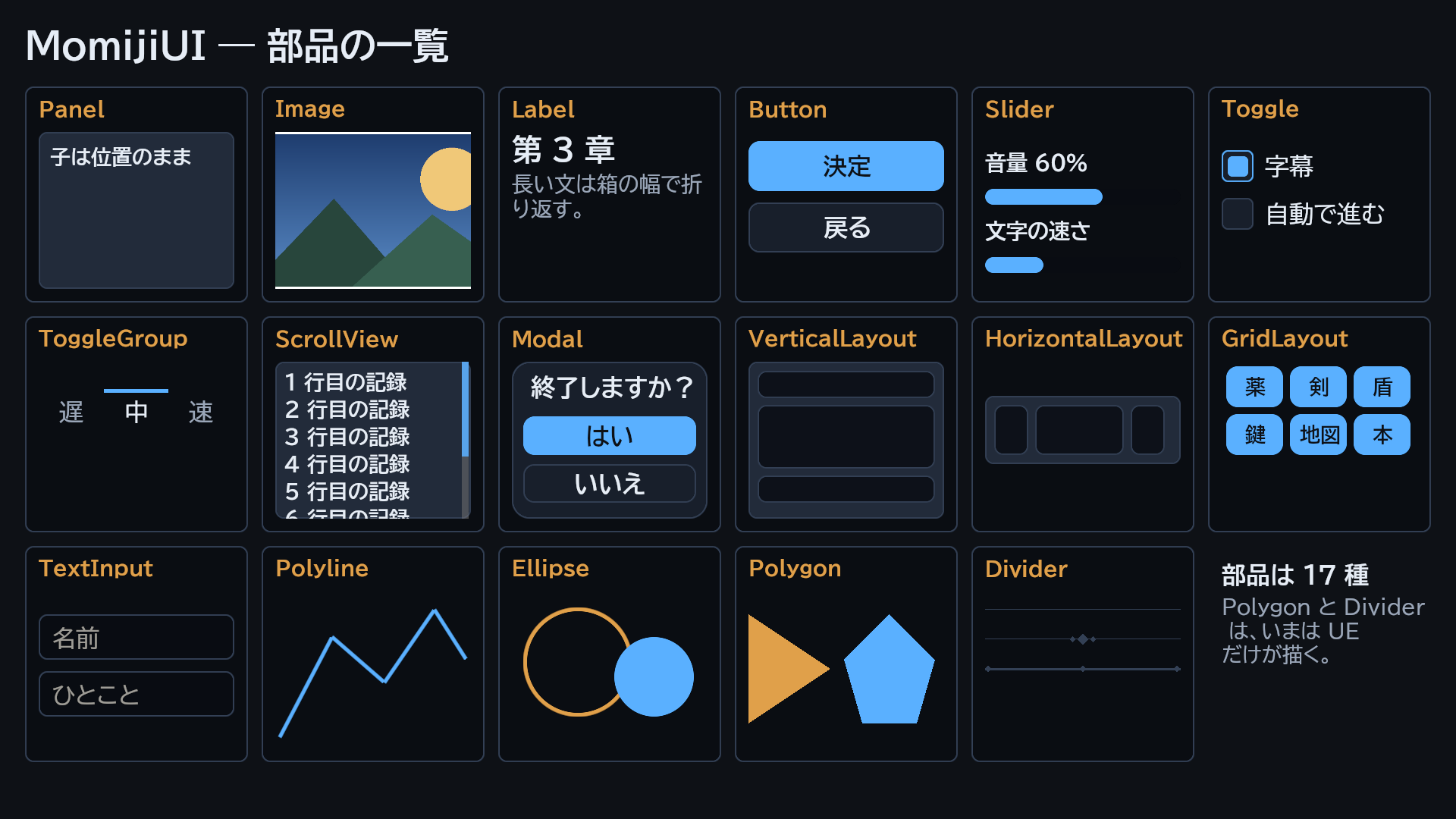
部品 17 種を 1 枚に並べた画面(UE。テーマ midnight)。Polygon と Divider はいまは UE だけが描く

3.1 共通の鍵

全部の部品に書ける鍵(25)。

鍵 型 既定 ブラウザ 何を書くか
type 文字列 Panel 描く 部品の種類(§3 の 17 種)。書かなければ Panel
id 文字列 — 描く 部品の名前。焦点・スクロール量・動き・文字欄の中身はこの名前で追う。状態を持つ部品(押せる・文字欄・ScrollView・Modal)には付ける。一覧の中は "row:{item.id}" のようにデータの鍵で
x 数 0 描く 左端(論理 px)。並べる入れ物の子では親が決める
y 数 0 描く 上端(論理 px)。並べる入れ物の子では親が決める
w 数 0 描く 幅(論理 px)。縦に並べる入れ物の子で書かなければ親の幅いっぱい
h 数 0 描く 高さ(論理 px)。書かなければ中身から測る(並べる入れ物・折り返す Label)か 28
margin 数 0 描く 並べる入れ物の中での外側の余白(上下左右に同じだけ)
flex 数 0 描く 縦/横に並べる入れ物の子で、大きさを書いていない分の残りを分ける比(1 と 2 なら 1:2)
minW 数 0 描く flex で分けたときの幅の下限(横に並べる入れ物の子)
minH 数 0 描く flex で分けたときの高さの下限(縦に並べる入れ物の子)
anchor 文字列 — 描く 画面の端や中央に寄せる(値は §4.1)。描く前に一度だけ解く
showIf 文字列 — 描く 条件式(§5.2)。偽なら子ごと消す
hideIf 文字列 — 描く 条件式(§5.2)。真なら子ごと消す
enabledIf 文字列 — 描く 条件式(§5.2)。偽なら押せない(薄く描く)
highlightIf 文字列 — 描く 条件式(§5.2)。真なら強調(highlight と同じ)
enabled 真偽 true 描く false なら押せない(薄く描く)
focusable 真偽 true 描く false なら方向キー・パッドの焦点に入らない(押すことはできる)
highlight 真偽 false 描く true なら強調(板と入れ物は accent の枠と明るい地、枠だけのボタンは accent の枠)
action 文字列 — 描く 押したときに host へ届く文字列。意味は host が決める。Button のほか Panel・Image・並べる入れ物・Slider・Toggle・ToggleGroup の項目に書けば押せる。TextInput は Enter で届く
anim オブジェクト — 描く 動き(§7)。動く部品には id か action を付ける
offset (検査しない) — UE だけ [x, y]。並べた位置からずらす(はみ出してよい)。UE だけ
rotate 数 0 UE だけ 度。部品の中心を軸に中身ごと回す。UE だけ
skewX 数 0 UE だけ 度。部品の中心を軸に中身ごと横へ斜めにする。UE だけ
opacity 数 1 UE だけ 0〜1。中身ごと薄くする。UE だけ
glow (検査しない) — UE だけ {size, color}。後ろに柔らかい光の輪を描く。UE だけ

3.2 Panel

板。子を並べない(子の x・y・w・h は画面の上の位置のまま使う。積むなら VerticalLayout)。押せる板にするなら action を書く。

鍵 型 既定 ブラウザ 何を書くか
variant 文字列 テーマの panel の板 描く 見た目: spacer(何も描かない)・light・dark・atelier-surface・atelier-card・atelier-icon-tile
color 文字列 テーマの panel 描く 地の色(#rrggbb か #rrggbbaa)
borderColor 文字列 テーマの panelEdge UE だけ 枠の色。UE だけ
borderWidth 数 テーマの border UE だけ 枠の太さ(px)。0 は枠なし(テーマの二重線や飾りも描かない)。UE だけ
gradient (検査しない) — UE だけ {"dir": "v" か "h", "stops": [["#rrggbbaa", 0], ["#…", 1]]}。地を線形の濃淡で塗る(color より強い)。UE だけ
shape 文字列 rect UE だけ 箱の形: rect・hex(両端が尖る)・tagL・tagR(片方が尖る)・slant(平行四辺形)。UE だけ
shapeInset 数 高さの 0.35 UE だけ 尖りの深さ(px)。UE だけ
edge3d (検査しない) — UE だけ {light, dark, width}。立体の縁(上と左が light、下と右が dark)。UE だけ
innerBorder (検査しない) — UE だけ {color, width, inset}。内側のもう 1 本の線。UE だけ
clip 真偽 false UE だけ true なら中身を箱で切る。UE だけ
backdropBlur 数 0 UE だけ 強さ(2〜20)。後ろの画面をぼかす。UE だけ
highlightTextColor 文字列 — UE だけ 強調している間(highlight)の中の文字の色。UE だけ
selectable 真偽 false 描く true なら中の Label の文字をマウスで選べ、離した瞬間にクリップボードへ入る(§6.2)
children 配列 — 描く 子の部品の配列
repeat 文字列 — 描く 一覧の名前(§5.1)。host が渡す一覧の要素ごとに型を複製して子にする
template オブジェクト — 描く repeat の型(部品 1 つ)
templates オブジェクト — 描く {"<種類>": 型}。要素の templateKey の値で型を選ぶ
templateKey 文字列 — 描く templates から型を選ぶ要素の鍵

例:

{ "root": { "type": "Panel", "x": 40, "y": 40, "w": 400, "h": 160, "variant": "dark",
  "children": [
   {"type": "Label", "x": 60, "y": 60, "w": 360, "h": 32, "text": "Score {score}"}
  ] } }

3.3 Image

画像か色の四角。sprite も color も無ければテーマの panel の色。

鍵 型 既定 ブラウザ 何を書くか
sprite 文字列 — 描く 画像の場所(鍵)。場所への解決は host(UE はプロジェクトからの相対、ブラウザは imageSource)
fit 文字列 contain 描く 画像の収め方(値は §4.1)
color 文字列 テーマの panel 描く 画像が無いときの塗りの色
borderColor 文字列 — UE だけ 枠の色。書いたときだけ枠を描く(角は直角・画像の上)。UE だけ
borderWidth 数 — UE だけ 枠の太さ(px)。UE だけ
gradient (検査しない) — UE だけ 色の四角を線形の濃淡で塗る(形は Panel と同じ。sprite が無く color も書いたときだけ効く)。UE だけ
slice (検査しない) — UE だけ [左, 上, 右, 下](絵の px)。9 分割で伸ばす。UE だけ
tile 真偽 false UE だけ true なら敷き詰める。UE だけ
src (検査しない) — UE だけ [x, y, w, h](絵の px)。絵の一部を切り出す。UE だけ

例:

{ "root": {"type": "Image", "x": 40, "y": 40, "w": 320, "h": 180, "sprite": "Plugins/MomijiUI/Fixtures/images/landscape.png", "fit": "cover"} }

3.4 Label

文字。1 行の文字は箱の縦の中心に置く。wrapW を書くと折り返し、高さは行数から決まる。

鍵 型 既定 ブラウザ 何を書くか
text 文字列 — 描く 文字。{鍵} は値に置き換わる(§5)。\n で改行
fontSize 数 16 描く 字の大きさ(ポイント。画面では ×4/3 px)
font 文字列 bold 描く 太さ: bold(太字)・main(標準)。logo はブラウザは太字・UE は標準
align 文字列 left 描く 横の寄せ(値は §4.1)
center 真偽 false 描く true なら中央寄せ(古い書き方。align があればそちら)
wrapW 数 0 描く 折り返す幅(px)。書くと複数行で、左上から行送りで下へ
lineH 数 fontSize × 30/22(無ければ 30) 描く 行送り(px。折り返すときだけ)
ellipsis 真偽 false 描く true なら入らない文字を末尾で落として「…」を付ける(1 行)
textColor 文字列 テーマの textPrimary(押せないときは textDim) 描く 文字の色
runs 配列 — 描く [{text, bold, color, ruby}]。区間ごとに色・太字・ルビを変える(text の代わりに描く)。UE はさらに size(区間の大きさ)と icon・src(行の中の絵)
textOutline (検査しない) — UE だけ {width, color}。文字の縁取り。UE だけ
textGlow (検査しない) — UE だけ {size, color}。文字の光。UE だけ
letterSpacing 数 テーマ UE だけ 字間(px)。UE だけ
monoDigits 真偽 false UE だけ true なら数字を同じ幅で並べる。UE だけ
highlightTextColor 文字列 — UE だけ 強調している入れ物の中にいる間の文字の色。UE だけ

例:

{ "root": { "type": "VerticalLayout", "anchor": "center", "w": 480, "h": 160, "pad": 16, "gap": 8,
  "children": [
   {"type": "Label", "text": "Chapter {chapter}", "fontSize": 20, "align": "center", "h": 32},
   {"type": "Label", "text": "A long line of text that wraps inside the box.", "font": "main", "wrapW": 440, "textColor": "#9aa6b8"}
  ] } }

3.5 Button

押せる板と文字。押すと action が host へ届く。

鍵 型 既定 ブラウザ 何を書くか
text 文字列 — 描く ボタンの文字({鍵} は値に置き換わる)
variant 文字列 primary 描く 見た目: primary(accent で塗る)・ghost(panel で塗って枠)・atelier-primary・atelier-ghost。UE はさらに plain(文字だけ)・box(窓と同じ描き方)
icon 文字列 — 描く 文字の前に付ける記号(絵文字など)
align 文字列 center 描く ghost のときだけ left・right で左右 10px 内側に寄せる(ほかは中央)
font 文字列 bold 描く 太さ: bold(太字)・main(標準)。logo はブラウザは太字・UE は標準
fontSize 数 16 描く 字の大きさ(ポイント)
ellipsis 真偽 false 描く true なら入らない文字を「…」で詰める
color 文字列 primary はテーマの accent(押せないと accentDim)・ghost は panel 描く 地の色
textColor 文字列 primary は textOnAccent・ghost は textPrimary 描く 文字の色
shape 文字列 rect UE だけ 箱の形(Panel と同じ値)。UE だけ
shapeInset 数 — UE だけ 尖りの深さ(px)。UE だけ
edge3d (検査しない) — UE だけ {light, dark, width}。立体の縁。UE だけ
textOutline (検査しない) — UE だけ {width, color}。文字の縁取り。UE だけ
textGlow (検査しない) — UE だけ {size, color}。文字の光。UE だけ
letterSpacing 数 — UE だけ 字間(px)。UE だけ

例:

{ "root": { "type": "HorizontalLayout", "anchor": "bottom", "h": 64, "pad": 8, "gap": 8,
  "children": [
   {"type": "Button", "id": "ok", "text": "OK", "action": "ok", "w": 160},
   {"type": "Button", "id": "cancel", "text": "Cancel", "action": "cancel", "variant": "ghost", "w": 160, "enabledIf": "canCancel"}
  ] } }

3.6 Slider

溝と、値の分だけ塗った棒。押した位置の比(0〜1)が値として host へ届く(kind: slider)。

鍵 型 既定 ブラウザ 何を書くか
bindVar 文字列 — 描く 値の名前。host の数の値(vars)が value に入る
value 数 0 描く 0〜1 の値
color 文字列 テーマの accent 描く 塗った棒の色
text 文字列 — UE だけ 0〜1 の数の文字("{hp}" など)。書けば value の代わりに使う。UE だけ
gradient (検査しない) — UE だけ 塗った棒を線形の濃淡で塗る。UE だけ
edge3d (検査しない) — UE だけ {light, dark, width}。溝の立体の縁。UE だけ
shape 文字列 — UE だけ 溝と棒の形(Panel と同じ値)。UE だけ
shapeInset 数 — UE だけ 尖りの深さ(px)。UE だけ
borderColor 文字列 — UE だけ 溝の枠の色。UE だけ
borderWidth 数 — UE だけ 溝の枠の太さ(px)。UE だけ

例:

{ "root": { "type": "VerticalLayout", "anchor": "center", "w": 400, "h": 80, "pad": 16, "gap": 8,
  "children": [
   {"type": "Label", "text": "Volume", "h": 24},
   {"type": "Slider", "id": "volume", "bindVar": "volume", "action": "set:volume", "h": 14}
  ] } }

3.7 Toggle

四角の印と右の文字。押すと切り替えたあとの真偽が host へ届く(kind: toggle)。当たりは箱+10+文字の幅。

鍵 型 既定 ブラウザ 何を書くか
bindVar 文字列 — 描く 値の名前。host の数の値(vars)が 0 以外なら on
on 真偽 false 描く 入っているか
text 文字列 — 描く 印の右の文字
font 文字列 main 描く 文字の太さ

例:

{ "root": { "type": "VerticalLayout", "anchor": "center", "w": 400, "h": 60, "pad": 16,
  "children": [
   {"type": "Toggle", "id": "subtitles", "bindVar": "subtitles", "action": "toggle:subtitles", "text": "Subtitles"}
  ] } }

3.8 ToggleGroup

タブのような排他の選択。子(各項目の text と action)を横に等分し、選んだ項目の上に accent の帯。押すと項目の番号が host へ届く(kind: toggle)。

鍵 型 既定 ブラウザ 何を書くか
bindVar 文字列 — 描く 値の名前。host の数の値(vars)が selected に入る
selected 数 0 描く 選んでいる項目の番号(0 から)
children 配列 — 描く 項目の配列(各項目に text と action)

例:

{ "root": { "type": "VerticalLayout", "anchor": "center", "w": 480, "h": 64, "pad": 8,
  "children": [
   { "type": "ToggleGroup", "id": "speed", "bindVar": "speed", "h": 40,
    "children": [
     {"id": "speed-0", "text": "Slow", "action": "speed:0"},
     {"id": "speed-1", "text": "Normal", "action": "speed:1"},
     {"id": "speed-2", "text": "Fast", "action": "speed:2"}
    ] }
  ] } }

3.9 ScrollView

子を縦に積み、はみ出したら縦にスクロールする(flex は効かない)。中身が箱より高いと子の幅から 10 を引いてスクロール条を出す。見える範囲の外は描かず押せない。

鍵 型 既定 ブラウザ 何を書くか
pad 数 0 描く 内側の余白
gap 数 8 描く 子の間
variant 文字列 — 描く light か dark で地を塗る
color 文字列 — 描く 地の色(書けば塗る)
selectable 真偽 false 描く true なら中の Label の文字を選んでコピーできる(§6.2)
children 配列 — 描く 子の部品の配列
repeat 文字列 — 描く 一覧の名前(§5.1)
template オブジェクト — 描く repeat の型
templates オブジェクト — 描く {"<種類>": 型}
templateKey 文字列 — 描く templates から型を選ぶ要素の鍵

例:

{ "root": { "type": "ScrollView", "id": "log", "x": 40, "y": 40, "w": 600, "h": 300, "pad": 8, "gap": 4, "selectable": true, "repeat": "lines", "children": [],
  "template": {"type": "Label", "text": "{item.text}", "font": "main", "wrapW": 560} } }

3.10 Modal

画面全体の暗幕と中央の板。板は w×h(既定 480×320)で、x・y が 0 なら画面の中央。子は縦に積む。Modal の中は別の焦点の群で、開いている間は後ろの部品に焦点も入力も行かない。

鍵 型 既定 ブラウザ 何を書くか
text 文字列 — 描く 見出し(板の上端から 4 下に高さ 36)。あれば子は 48 下から
dim 真偽か数 true 描く false なら暗幕を描かない
pad 数 0 描く 板の内側の余白
gap 数 8 描く 子の間
color 文字列 テーマの panel 描く 板の色
borderColor 文字列 — UE だけ 板の枠の色。UE だけ
borderWidth 数 — UE だけ 板の枠の太さ(px)。UE だけ
children 配列 — 描く 子の部品の配列
repeat 文字列 — 描く 一覧の名前(§5.1)
template オブジェクト — 描く repeat の型
templates オブジェクト — 描く {"<種類>": 型}
templateKey 文字列 — 描く templates から型を選ぶ要素の鍵

例:

{ "root": { "type": "Panel", "variant": "spacer",
  "children": [
   { "type": "Modal", "id": "confirm", "text": "Quit?", "showIf": "askQuit", "pad": 16, "gap": 8,
    "children": [
     {"type": "Button", "id": "quit-yes", "text": "Yes", "action": "quit:yes", "h": 44},
     {"type": "Button", "id": "quit-no", "text": "No", "action": "quit:no", "variant": "ghost", "h": 44}
    ] }
  ] } }

3.11 VerticalLayout

子を上から縦に積む。幅の無い子は親の幅いっぱい。高さの無い入れ物の子は測った高さを持つ。

鍵 型 既定 ブラウザ 何を書くか
pad 数 0 描く 内側の余白
gap 数 8 描く 子の間
variant 文字列 — 描く light か dark で地を塗る
color 文字列 — 描く 地の色(書けば塗る)
borderColor 文字列 — UE だけ 枠の色。UE だけ
borderWidth 数 — UE だけ 枠の太さ(px)。0 は枠なし。UE だけ
gradient (検査しない) — UE だけ 地を線形の濃淡で塗る。UE だけ
shape 文字列 — UE だけ 地の形(Panel と同じ値)。UE だけ
shapeInset 数 — UE だけ 尖りの深さ(px)。UE だけ
edge3d (検査しない) — UE だけ {light, dark, width}。立体の縁。UE だけ
innerBorder (検査しない) — UE だけ {color, width, inset}。内側の線。UE だけ
clip 真偽 — UE だけ true なら中身を箱で切る。UE だけ
backdropBlur 数 — UE だけ 後ろの画面をぼかす強さ。UE だけ
highlightTextColor 文字列 — UE だけ 強調している間の中の文字の色。UE だけ
selectable 真偽 false 描く true なら中の Label の文字を選んでコピーできる(§6.2)
children 配列 — 描く 子の部品の配列
repeat 文字列 — 描く 一覧の名前(§5.1)
template オブジェクト — 描く repeat の型
templates オブジェクト — 描く {"<種類>": 型}
templateKey 文字列 — 描く templates から型を選ぶ要素の鍵

例:

{ "root": { "type": "VerticalLayout", "anchor": "center", "w": 400, "h": 240, "pad": 16, "gap": 8, "variant": "dark",
  "children": [
   {"type": "Label", "text": "Title", "h": 32},
   {"type": "Panel", "variant": "light", "flex": 1},
   {"type": "Button", "id": "close", "text": "Close", "action": "close", "h": 44}
  ] } }

3.12 HorizontalLayout

子を左から横に並べる。子の幅は w(無ければ 100)か flex。高さの無い子は親の高さいっぱい。

鍵 型 既定 ブラウザ 何を書くか
pad 数 0 描く 内側の余白
gap 数 8 描く 子の間
variant 文字列 — 描く light か dark で地を塗る
color 文字列 — 描く 地の色(書けば塗る)
borderColor 文字列 — UE だけ 枠の色。UE だけ
borderWidth 数 — UE だけ 枠の太さ(px)。0 は枠なし。UE だけ
gradient (検査しない) — UE だけ 地を線形の濃淡で塗る。UE だけ
shape 文字列 — UE だけ 地の形(Panel と同じ値)。UE だけ
shapeInset 数 — UE だけ 尖りの深さ(px)。UE だけ
edge3d (検査しない) — UE だけ {light, dark, width}。立体の縁。UE だけ
innerBorder (検査しない) — UE だけ {color, width, inset}。内側の線。UE だけ
clip 真偽 — UE だけ true なら中身を箱で切る。UE だけ
backdropBlur 数 — UE だけ 後ろの画面をぼかす強さ。UE だけ
highlightTextColor 文字列 — UE だけ 強調している間の中の文字の色。UE だけ
children 配列 — 描く 子の部品の配列
repeat 文字列 — 描く 一覧の名前(§5.1)
template オブジェクト — 描く repeat の型
templates オブジェクト — 描く {"<種類>": 型}
templateKey 文字列 — 描く templates から型を選ぶ要素の鍵

例:

{ "root": { "type": "HorizontalLayout", "anchor": "top", "h": 56, "pad": 8, "gap": 8,
  "children": [
   {"type": "Label", "text": "HP {hp}", "w": 160},
   {"type": "Panel", "variant": "spacer", "flex": 1},
   {"type": "Button", "id": "menu", "text": "Menu", "action": "menu", "w": 120}
  ] } }

3.13 GridLayout

子を cols 列に左上から並べる。セル幅は等分、行はその行の最大の高さ+gap だけ下げる。高さの無い子は 28。

鍵 型 既定 ブラウザ 何を書くか
cols 数 1 描く 列の数
pad 数 0 描く 内側の余白
gap 数 8 描く セルの間(縦と横)
variant 文字列 — 描く light か dark で地を塗る
color 文字列 — 描く 地の色(書けば塗る)
borderColor 文字列 — UE だけ 枠の色。UE だけ
borderWidth 数 — UE だけ 枠の太さ(px)。0 は枠なし。UE だけ
gradient (検査しない) — UE だけ 地を線形の濃淡で塗る。UE だけ
shape 文字列 — UE だけ 地の形(Panel と同じ値)。UE だけ
shapeInset 数 — UE だけ 尖りの深さ(px)。UE だけ
edge3d (検査しない) — UE だけ {light, dark, width}。立体の縁。UE だけ
innerBorder (検査しない) — UE だけ {color, width, inset}。内側の線。UE だけ
clip 真偽 — UE だけ true なら中身を箱で切る。UE だけ
backdropBlur 数 — UE だけ 後ろの画面をぼかす強さ。UE だけ
highlightTextColor 文字列 — UE だけ 強調している間の中の文字の色。UE だけ
children 配列 — 描く 子の部品の配列
repeat 文字列 — 描く 一覧の名前(§5.1)
template オブジェクト — 描く repeat の型
templates オブジェクト — 描く {"<種類>": 型}
templateKey 文字列 — 描く templates から型を選ぶ要素の鍵

例:

{ "root": { "type": "GridLayout", "anchor": "center", "w": 480, "h": 200, "cols": 3, "pad": 8, "gap": 8, "repeat": "items", "children": [],
  "template": {"type": "Button", "id": "item:{item.id}", "text": "{item.name}", "action": "use:{item.id}", "h": 44} } }

3.14 TextInput

1 行の文字欄の枠。編集は MomijiUI が枠の位置に重ねる編集欄(UE は SEditableText、ブラウザは <input>)で、日本語入力が使える。Enter で action が届く(kind: submit・value は欄の文字)。

鍵 型 既定 ブラウザ 何を書くか
bindVar 文字列 — 描く 欄の中身の名前(host はこの名前で読み書きする)
placeholder 文字列 — 描く 空のときに薄く出す例文
maxLen 数 0 描く 最大の字数(コードポイント。0 は無制限)
focused 真偽 false 描く true なら枠を accent で描く(host が付ける)
color 文字列 テーマの track 描く 欄の地の色
fontSize 数 16 描く 字の大きさ(ポイント)

例:

{ "root": { "type": "VerticalLayout", "anchor": "center", "w": 480, "h": 80, "pad": 16,
  "children": [
   {"type": "TextInput", "id": "name", "bindVar": "name", "placeholder": "Your name", "maxLen": 12, "action": "name:submit", "h": 44}
  ] } }

3.15 Polyline

折れ線。配置に参加しない(points は画面の上の位置)。2 点未満なら描かない。

鍵 型 既定 ブラウザ 何を書くか
points 配列 — 描く [[x, y], …](画面の上の位置)
thickness 数 1 描く 線の太さ
closed 真偽 false 描く true なら終点と始点も結ぶ(枠線になる)
color 文字列 UE はテーマの textPrimary・ブラウザは panelEdge 描く 線の色

例:

{ "root": { "type": "Panel", "variant": "spacer",
  "children": [
   {"type": "Polyline", "points": [[100, 400], [300, 300], [500, 360]], "thickness": 3, "color": "#5ab0ff"}
  ] } }

3.16 Ellipse

楕円。x・y・w・h が外接する四角。配置に参加しない。

鍵 型 既定 ブラウザ 何を書くか
fill 真偽 true 描く true なら塗る。false なら輪郭だけ
thickness 数 1 描く 輪郭の太さ(fill が false のとき)
color 文字列 テーマの textPrimary 描く 色

例:

{ "root": { "type": "Panel", "variant": "spacer",
  "children": [
   {"type": "Ellipse", "x": 600, "y": 300, "w": 80, "h": 80, "fill": false, "thickness": 2, "color": "#e0a04a"}
  ] } }

3.17 Polygon

塗りの多角形。points は部品の左上からの位置で、並べる入れ物の中に置ける(w・h を持つ)。3 点未満なら描かない。UE だけ。

ブラウザはこの部品の形を描かず、箱をテーマの panel の色で塗る(診断は知っている部品として通す)。

鍵 型 既定 ブラウザ 何を書くか
points 配列 — UE だけ [[x, y], …](部品の左上から)
color 文字列 テーマの panel UE だけ 塗りの色
gradient (検査しない) — UE だけ 線形の濃淡で塗る
borderColor 文字列 — UE だけ 輪郭の色(書けば輪郭を描く)
borderWidth 数 — UE だけ 輪郭の太さ(px)

例:

{ "root": { "type": "HorizontalLayout", "anchor": "top", "h": 48, "pad": 8,
  "children": [
   {"type": "Polygon", "w": 32, "h": 32, "points": [[0, 0], [32, 16], [0, 32]], "color": "#e0a04a"}
  ] } }

3.18 Divider

区切り線。箱の縦の中央に線を引き、ornament で飾りを付ける。高さが無ければ 12。UE だけ。

ブラウザはこの部品の形を描かず、箱をテーマの panel の色で塗る(診断は知っている部品として通す)。

鍵 型 既定 ブラウザ 何を書くか
color 文字列 テーマの panelEdge UE だけ 線と飾りの色
thickness 数 1 UE だけ 線の太さ(1 より細くしない)
ornament 文字列 none UE だけ 飾り: diamond(中央に菱形 3 つ)・dots(両端と中央に小さな菱形)・none

例:

{ "root": { "type": "VerticalLayout", "anchor": "center", "w": 400, "h": 80, "pad": 16,
  "children": [
   {"type": "Divider", "ornament": "diamond", "thickness": 1}
  ] } }

4. 配置

4.1 列挙の値

診断が値を確かめる鍵です。表の外の値は bad-value(error)になります。

鍵 値 何になるか
anchor fill 画面全体
anchor safe 安全域全体
anchor top 安全域の幅いっぱいで上へ寄せる
anchor bottom 安全域の幅いっぱいで下へ寄せる
anchor left 高さいっぱいで左へ寄せる
anchor right 高さいっぱいで右へ寄せる
anchor center 中央(w・h はそのまま)
fit contain 画像を枠の中に収める(余白ができる)
fit cover 枠を埋める(はみ出しは切る)
fit stretch 枠に合わせて伸ばす(縦横比は変わる)
align left 左寄せ
align center 中央寄せ(字面の左右の中心で)
align right 右寄せ
anim.enter.type fade 透明から不透明へ(既定 easeOutQuad)
anim.enter.type slide from(既定 bottom)から distance(既定 40)だけ滑り込む(既定 easeOutCubic)
anim.enter.type pop 0.85 倍から元の大きさへ(既定 easeOutCubic)

4.2 高さの決め方

h が 0 より大きければそれを使います。無ければ種類ごとに測ります。

部品 高さ
VerticalLayout 2·pad + Σ(2·margin + 子の高さ) + gap·(子の数−1)
HorizontalLayout 2·pad + max(2·margin + 子の高さ)
GridLayout 2·pad + 行数·行の高さ + gap·(行数−1)(行の高さはその行の子の最大)
wrapW のある Label 折り返した行数 × 行送り
それ以外 28

4.3 並べる入れ物

4.4 anchor

anchor は描く前に一度だけ解きます。値は §4.1 の表のとおりです。anchor の無い部品は x y w h を画面の上の位置として使います。


5. 値の差し込み

あなたのプログラム(host)は、描くたびに 3 種類の値を渡します。画面 JSON の元の木は書き換えず、写しに入れます。

種類 何に効くか
文字(strings) text sprite action の中の {鍵}
数(vars) 条件式と {鍵}(文字に無ければ数を使う)。bindVar の部品(Slider の value・Toggle の on・ToggleGroup の selected)
一覧(lists) repeat で並べる部品

知らない {鍵} はそのまま残ります(診断もしません)。

5.1 repeat と template

5.2 条件式

showIf hideIf enabledIf highlightIf と anim.pulse.whileIf に書く式です。

例: count > 0・count >= 5 && ready・!(done) || n == 2。

5.3 描くまでの順

  1. 数の値を bindVar の部品へ入れる
  2. repeat を展開する
  3. {鍵} を置き換える
  4. 条件を当てる(enabledIf が偽なら押せない・highlightIf が真なら強調・showIf が偽/hideIf が真の部品は子ごと消す)
  5. 配置して描き、押せる場所を作る

1〜5 を 1 回でする入口が UE の KaedeUI::PresentScreen、ブラウザの MomijiUICanvas.present です(§9)。


6. 焦点と当たり・選択

6.1 当たりと焦点

6.2 文字の選択とコピー


7. 動き

anim に書きます。動く部品には id か action を付けます(動きはその鍵で追うので、無いと動きません)。入れ子の anim は外側が勝ちます。画面(host が渡す画面の名前)が変わったら、画面全体が 160ms で浮かび、前の画面の動きは捨てます。

鍵 ブラウザ 何を書くか
enter 描く {type, from, distance, durationMs, delayMs, easing}。初めて描かれたときに出る動き(type は §4.1)。既定 220ms
countUp 描く {durationMs, easing}。文字が数(1,234 も可)で、前に描いた値から変わったとき数え上げる(初回は即時)。既定 400ms
pulse 描く {scale, periodMs, whileIf}。箱を中心から拡大縮小し続ける(文字は動かない)。whileIf が偽なら止まる。既定 1.06 倍・900ms
staggerMs 描く 同じ親の中の順番 × これだけ enter を遅らせる(一覧を順に出す)
blink UE だけ {periodMs, min}。不透明度を min〜1 で繰り返す。UE だけ
bob UE だけ {distance, periodMs}。上下に揺らす。UE だけ
frames UE だけ {count, periodMs}。Image の src の切り出しを横に 1 コマずつ進める。UE だけ
exit UE だけ {type: fade か close, durationMs}。消えるとき、しばらく描き続けて消す。UE だけ
tween UE だけ {durationMs}。Slider の棒の長さを前の値から補間する。UE だけ

8. テーマ

テーマは画面全体の色と形の組です。UE は KaedeCore::BuiltinTheme("<名前>") か KaedeCore::LoadTheme(<テーマ JSON の文字列>)、ブラウザは R.setTheme("<名前>") か R.setTheme({…}) で選びます。テーマの JSON には変えたい鍵だけを書きます(UE の LoadTheme は atelier を元に、ブラウザの R.setTheme({…}) はいまのテーマを元に、書いた鍵だけを替えます)。

atelier midnight sakura
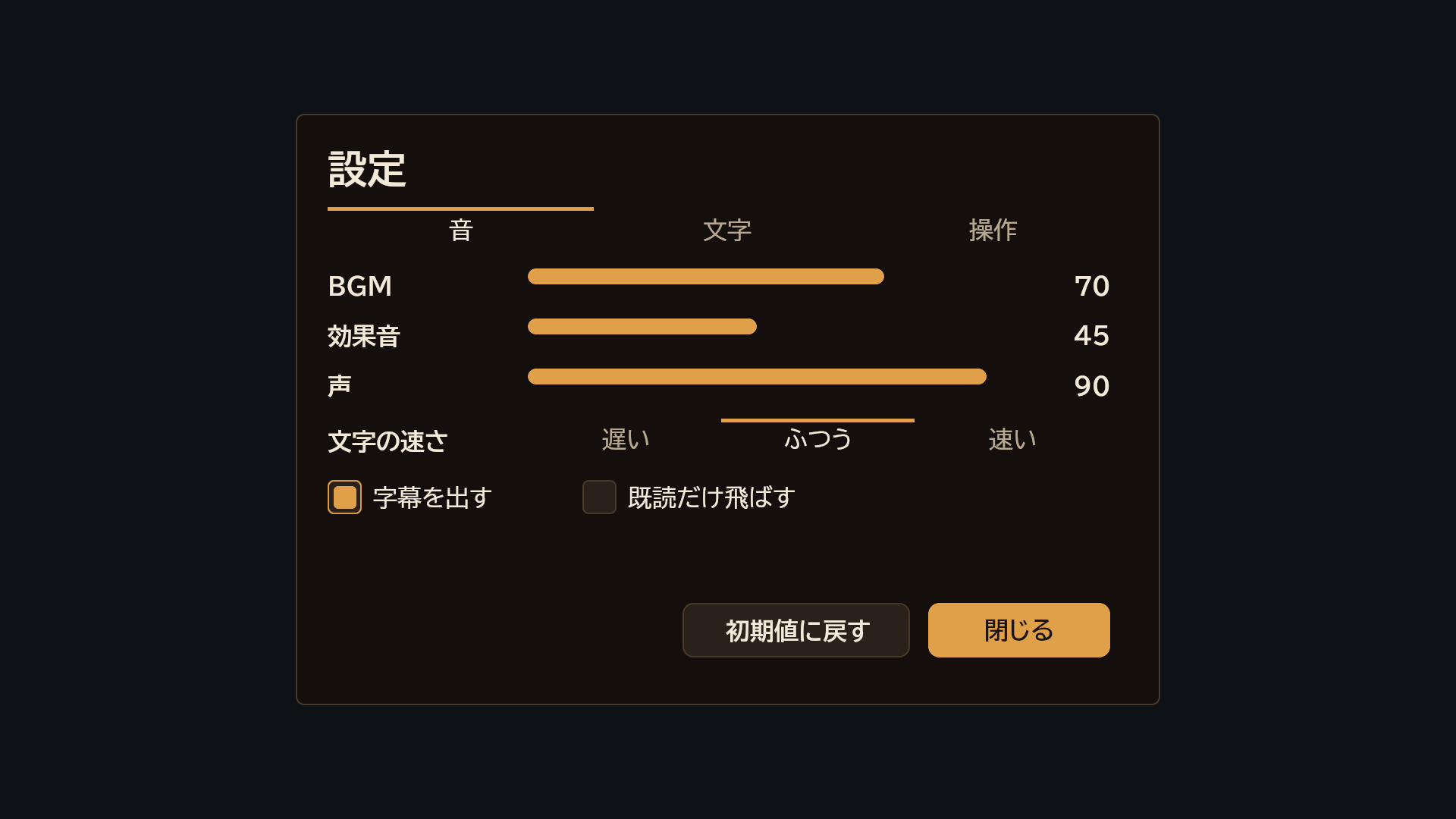
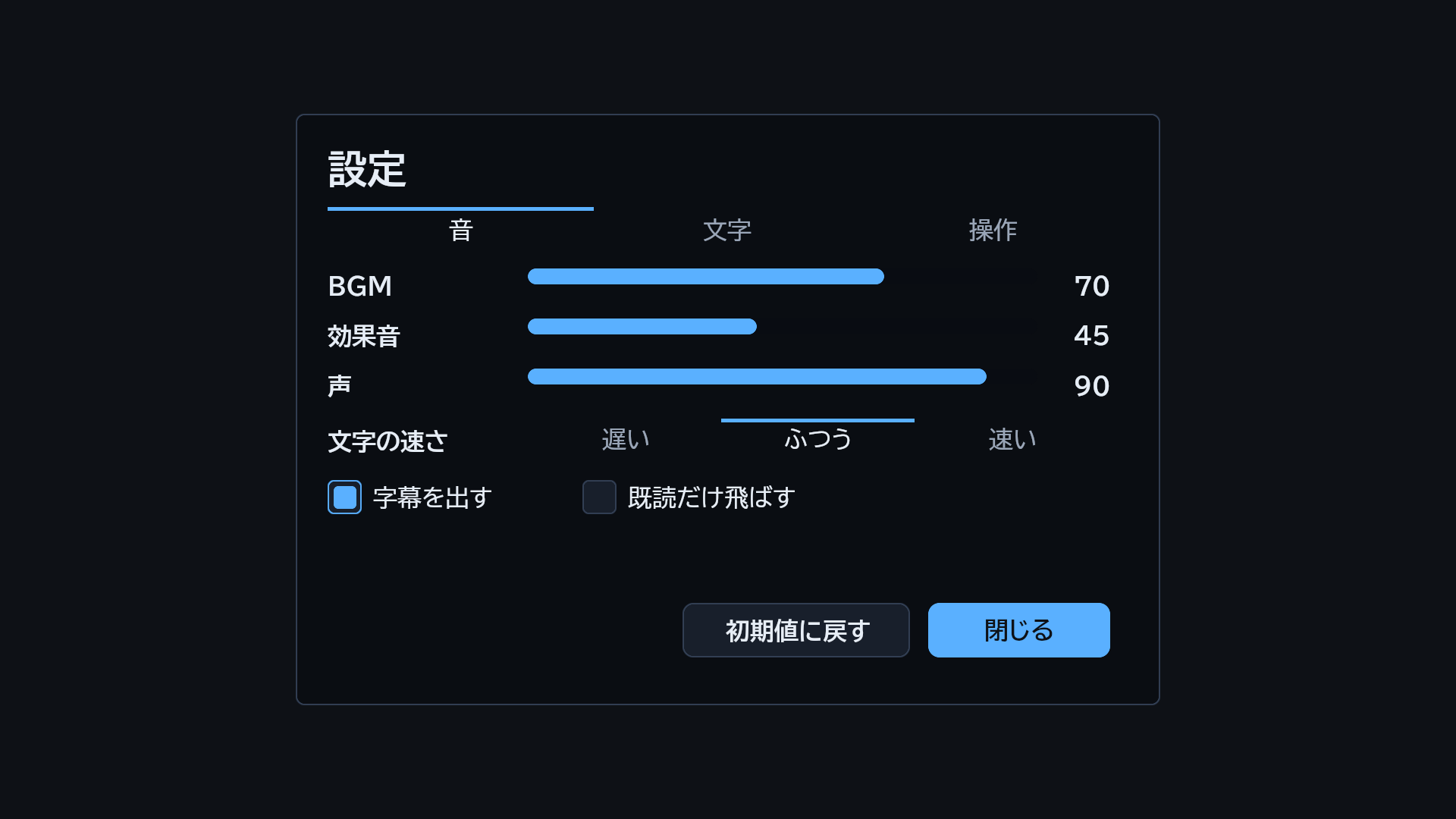
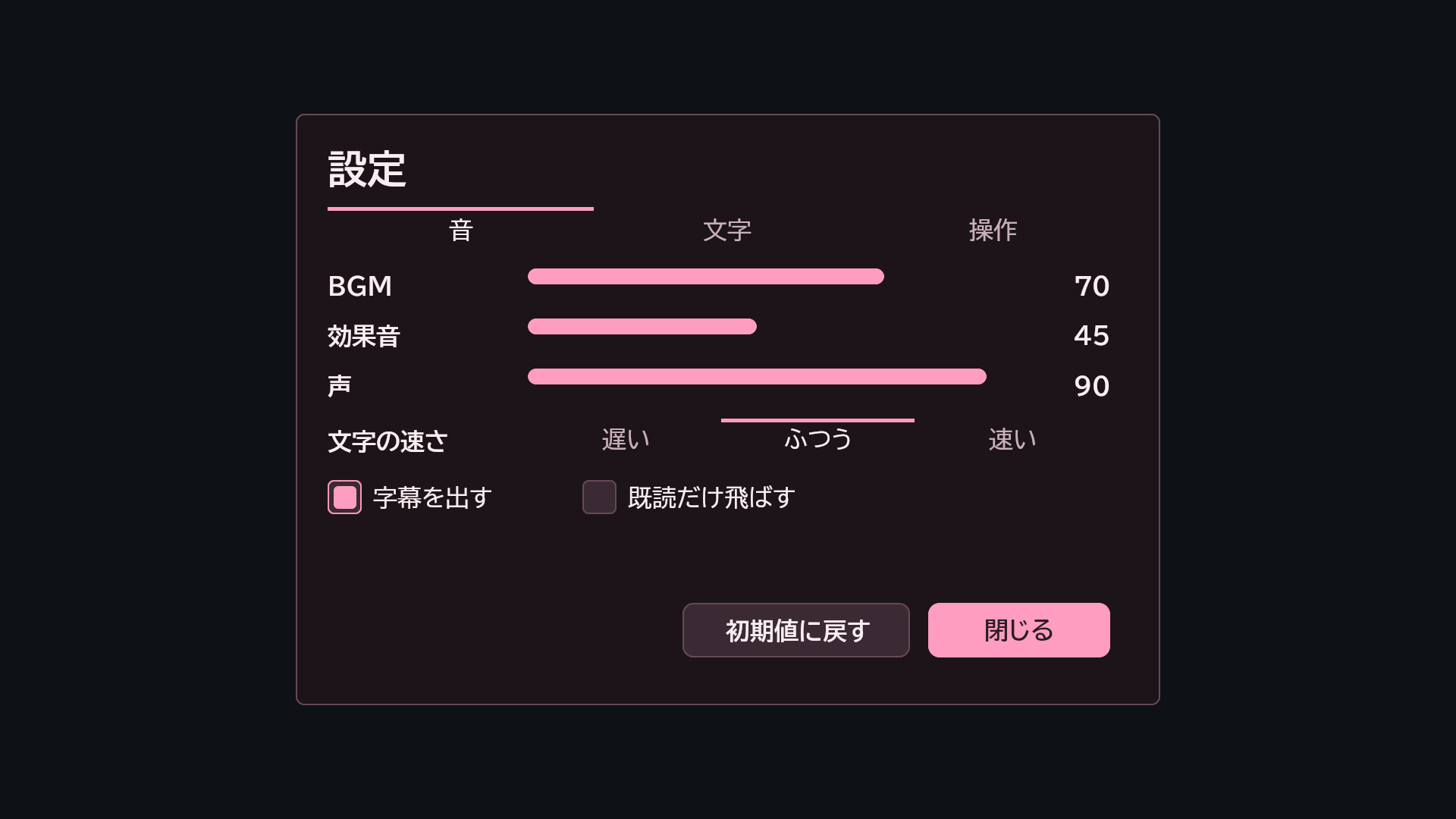
内蔵テーマ atelier の設定の画面(UE) 内蔵テーマ midnight の設定の画面(UE) 内蔵テーマ sakura の設定の画面(UE)

内蔵のテーマ 3 つ(atelier・midnight・sakura)。テーマの JSON の鍵は 29 で、ブラウザが読むのはそのうち色の 11。

鍵 ブラウザ 何を変えるか
bg 描く 画面の地の色
panel 描く 板・窓・ghost のボタン・Modal の板の色
panelLight 描く variant: light の板の色
panelEdge 描く 枠と線の色
accent 描く 強調の色(primary のボタン・Slider の棒・強調の枠)
accentDim 描く 押せない primary のボタンの色
track 描く Slider の溝・文字欄の地・variant: dark の地
dim 描く Modal の暗幕の色
textPrimary 描く 文字の色
textDim 描く 薄い文字(押せない部品・例文)の色
textOnAccent 描く accent の上の文字の色
radius UE だけ 窓とボタンの角の丸み(px)。UE だけ
border UE だけ 枠の太さ(px・既定 1)。UE だけ
frame UE だけ 窓の飾り: double(内側にもう 1 本)・ornate(さらに四隅に飾り)。UE だけ
shadow UE だけ {x, y, blur, color}。窓の影。UE だけ
gradient UE だけ 窓の地の濃淡(色 1 つなら下へ重ねる色、{dir, stops} なら線形の濃淡)。UE だけ
bevel UE だけ 窓の内側の上端の明るい線の色。UE だけ
textShadow UE だけ {x, y, color}。文字の影。UE だけ
cursorBar UE だけ 選んでいる行の左の accent の帯の幅(0 は無し)。UE だけ
edge3d UE だけ {light, dark, width}。窓の立体の縁。UE だけ
innerBorder UE だけ {color, width, inset}。窓の内側の線。UE だけ
frameImage UE だけ {sprite, slice}。窓の枠を絵の 9 分割で描く。UE だけ
pattern UE だけ {sprite, opacity}。窓の地に敷き詰める模様。UE だけ
windowShape UE だけ 窓の形(部品の shape と同じ値)。UE だけ
select UE だけ {gradient, fill, border, text, cursor, glow}。選んでいる行の見た目。UE だけ
textOutline UE だけ 全部の文字の縁取りの既定。UE だけ
textGlow UE だけ 全部の文字の光の既定。UE だけ
letterSpacing UE だけ 全部の文字の字間の既定(px)。UE だけ
knockout UE だけ true なら半透明の窓どうしが重なった所を濃くしない。UE だけ

9. 操作(あなたのプログラムの仕事)

あなたのプログラムの仕事は 4 つです: 画面 JSON を読む → 状態から値を作って描く → 押された動作で状態を変える → 描き直す。 入力(ポインタ・ホイール・スクロール条のつまみ・指のスクロール・Slider のドラッグ・方向キーと Enter/Space・文字欄の編集・日本語入力)は MomijiUI が受け持ち、あなたのプログラムに届くのは事象だけです。座標や当たりを自分で解釈しないでください。

9.1 事象

事象は {kind, action, nodeId, key, value, relX} です。

kind いつ value
press ボタンなど押せる部品を押した 無し
submit 文字欄で Enter(日本語の変換中の Enter は届かない) 欄の文字列
slider Slider を押した・動かした 0〜1 の数
toggle Toggle・ToggleGroup を押した Toggle は切り替えたあとの真偽、ToggleGroup は押した項目の番号

9.2 UE

すること 呼ぶもの
読む KaedeCore::LoadScreenTree(<JSON の文字列>)(読めなければエラーをログに出して空の木)。解析済みの JSON からは ScreenTreeFromJson
描く KaedeUI::PresentScreen(Canvas, Tree, Values, Theme, Bg, Motion, ScreenId)(§5.3 の 1〜5 を 1 回で)。値は KaedeUI::FKaedeScreenValues(Strings・Vars・Lists)
押されたとき SKaedeUiCanvas::SetOnAction([](const FString& Action, float RelX){ … })
文字欄 GetTextInputValue("<bindVar>")・SetTextInputValue・SetActiveTextInput
画面ごとの状態 ResetScreenState(<画面の名前>)・ResetAllScreenState・SetScrollOffset
動き kaedevn::ui::UiMotionState をウィジェットで持ち、PresentScreen に渡し、Tick で update(<ミリ秒>)
書体 SKaedeUiCanvas::SetFontFamily(Gothic・Mincho・Hand・Dot。§12)
描かずに測る KaedeUI::MeasureNodeHeight・KaedeCore::InstantiateTemplate
検査 KaedeCore::ValidateScreenJson(§10)
画面だけを見る 起動引数 -KaedeUiShot=<画面 JSON>(1 枚撮って終わる。bind の値で描く)

モジュールの *.Build.cs で MomijiUICore と MomijiUISlate に依存させます。見本は Plugins/MomijiUI/Source/MomijiUISlate/Private/Examples/SMomijiUICounterExample.cpp です。

9.3 ブラウザ

すること 呼ぶもの
読む MomijiUICanvas.load(json)(診断して error があれば例外で止まる。{strict: false} で続ける。戻り値 {root, host, diagnostics})
書体を待つ await MomijiUICanvas.loadFonts()
描く MomijiUICanvas.present(R, tree, {strings, vars, lists}, bg)(R は new MomijiUICanvas.Renderer(canvas))
入力を受ける MomijiUICanvas.attach(R, canvas, {stage, render, onEvent, drafts, fit})
文字欄 host.inputValue・host.setInputValue・host.focusInput(host は attach の戻り値)
画面ごとの状態 R.screenId・R.resetScreen・R.resetScreens
画像 R.imageSource・R.onImageLoad・R.onImageError
終わる host.dispose()(入力だけやめるなら host.detach())
描かずに測る・配置だけ R.measureNode・R.layout(tree, bg)・R.paint()・R.hitAt
検査 MomijiUICanvas.validate(doc)(§10)

ブラウザ版は依存の無い ES module 1 本(momiji-ui.mjs)と、<script> で読む従来形(window.MomijiUICanvas)です。静的な HTTP のサーバーで開きます(file:// では書体と fetch が働きません)。ブラウザの配布物は GitHub で準備中です。


10. 検査(診断)

診断は描く前に、場所(JSON Pointer の path)つきで次を返します。描くときには呼びません(検査の道具です)。UE は KaedeCore::ValidateScreenJson、ブラウザは MomijiUICanvas.validate(doc)、手元のファイルは node Tools/momiji-ui/validate.mjs <画面 JSON …>(1 件 1 行・error があれば終了コード 1)。2 つの実装は同じコードを同じ path で出します。
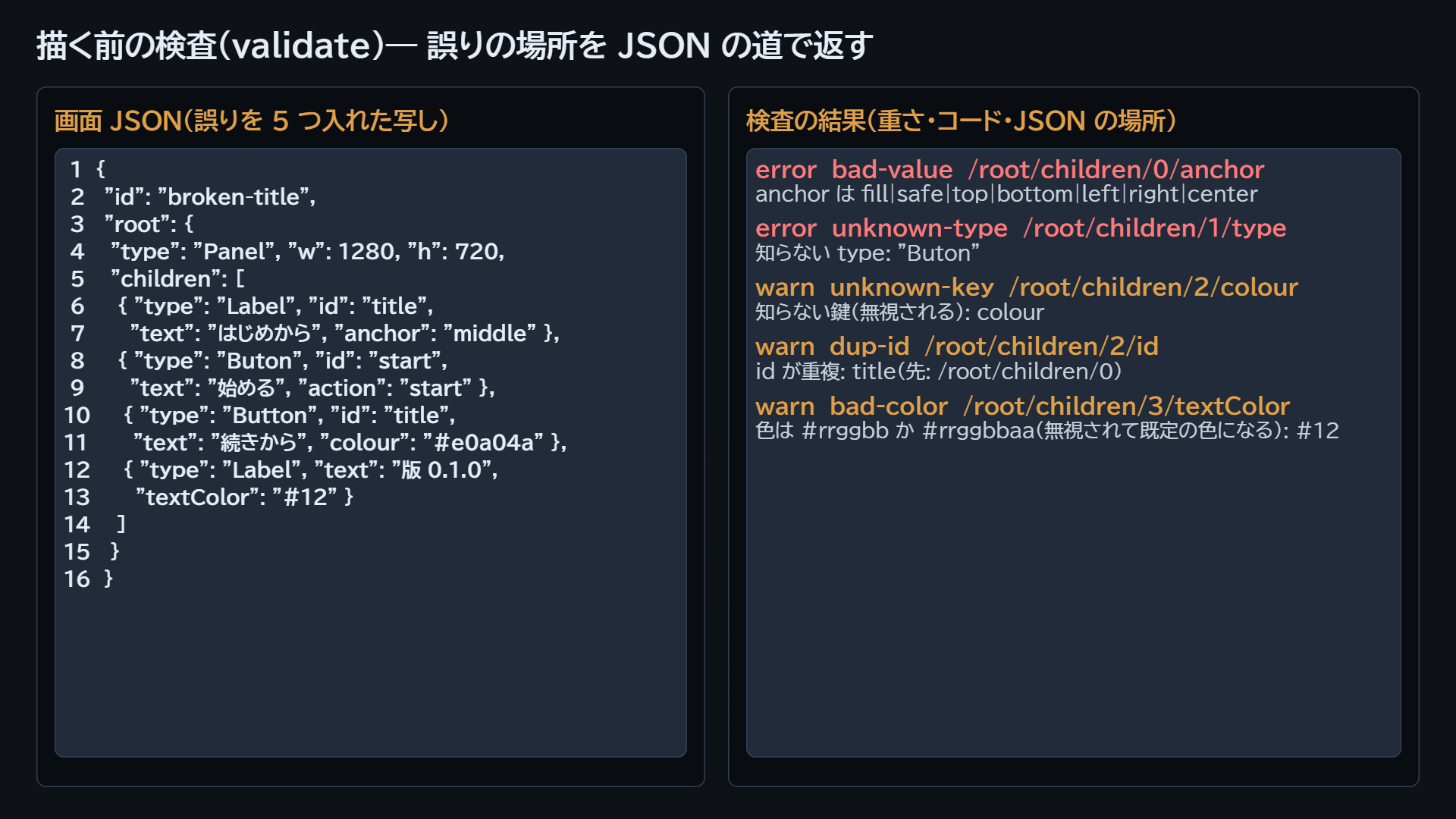
誤りを 5 つ入れた画面 JSON(左)と、その診断の結果(右。重さ・コード・path・説明)。ブラウザの検査の結果を画面に描いたもの

コード 重さ 何 直し方
bad-json error ファイルが JSON として読めない(node Tools/momiji-ui/validate.mjs だけが出す) 出た位置の JSON の書き方(括弧・カンマ・引用符)を直す
bad-value error 値の型違い(数・文字列・真偽・配列・オブジェクト)、列挙の外の値(anchor・fit・align・anim.enter.type)、runs・points の要素の形 §3 の表の型と §4.1 の値に合わせる
dup-id error / warn 同じ id({ を含まないもの)が 2 つある。状態を持つ部品(押せる・文字欄・ScrollView・Modal)が絡めば error、見た目だけの部品どうしは warn id を別にする。一覧の中は "row:{item.id}" のようにデータの鍵で
template-missing error repeat に template も templates も無い。templateKey に templates が無い template か templates を足す
unknown-type error 知らない type(描けない) §3 の 17 種のどれかに直す(綴りと大文字小文字)
bad-color warn #rrggbb・#rrggbbaa でない色(無視されて既定の色になる)。$ で始まる値は見ない #rrggbb か #rrggbbaa で書く
selectable-ignored warn selectable を Panel・VerticalLayout・ScrollView 以外に書いた(無視される) 文字を入れた器(Panel・VerticalLayout・ScrollView)に書く
unknown-key warn 知らない鍵(無視される。綴り違いの発見用)。_ で始まる鍵は注記として見ない §3 の表の鍵の綴りに直す。注記なら _ で始める

11. 保証すること・しないこと

保証する 保証しない
同じ木・同じ値・同じ字の計測からは同じ配置(四角の位置と大きさは 1px 以内・文字の行の位置は 2px 以内)・折り返しの行数・repeat と条件の結果・押せる場所・焦点の鍵と移り先と Modal の開閉・スクロール量・描かずに測った高さ・診断の結果 画素の色(字の塗り・角や縁のなめらかさ・画像の補間・色の混ぜ方)。描く道具ごとに違います

12. 同梱物の権利

もの 権利 場所
MomijiUI(ソースと照合の試料・見本) MIT License(kaedeasset) Plugins/MomijiUI/LICENSE
BIZ UDP ゴシック(Regular・Bold)・BIZ UDP 明朝(Regular・Bold)(モリサワ) SIL Open Font License 1.1 Resources/Fonts/・許諾文 OFL-BIZ-UDGothic.txt・OFL-BIZ-UDMincho.txt
Yomogi(手書き風)・DotGothic16(ドット) SIL Open Font License 1.1 Resources/Fonts/・許諾文 OFL-Yomogi.txt・OFL-DotGothic16.txt
JSON for Modern C++(nlohmann/json 3.11.3) MIT License Source/MomijiUICore/ThirdParty/nlohmann/
目次Contents

MomijiUI Reference

This reference is for MomijiUI 0.1.0 (2026-10-21).

MomijiUI is a UI framework where you write screens as JSON and draw them with the same layout in Unreal Engine (UE) and in the browser. This reference lists every screen-JSON key, all 17 node types and their keys, the enumerated values, animation, themes and diagnostic codes. The tables are generated by a script from the validator tables of the two implementations (UE and browser).


Contents

  1. How to read this reference
  2. Screen JSON
  3. Node types
  4. Layout
  5. Values
  6. Focus, hit areas and selection
  7. Animation
  8. Themes
  9. Interaction (your program's job)
  10. Checking (diagnostics)
  11. What is guaranteed and what is not
  12. Bundled third-party content

1. How to read this reference

1.1 Units and colours

1.2 Reading the tables

1.3 The two implementations

UE Browser
Drawn with Slate (SKaedeUiCanvas in MomijiUISlate) HTML <canvas> (momiji-ui.mjs)
Screen JSON the same file the same file
Role reference implementation follows UE

The same screen JSON with the same values gives the same layout, the same hit areas and the same focus movement in both implementations (§11).


2. Screen JSON

A screen file is an object whose root holds the node tree. A file without root is read as a single node.

{
 "root": {
  "type": "VerticalLayout", "anchor": "center", "w": 400, "h": 200, "pad": 20, "gap": 12,
  "children": [
   { "type": "Label", "text": "Hello {name}", "h": 32, "fontSize": 20, "align": "center" },
   { "type": "Button", "id": "ok", "text": "OK", "action": "ok", "h": 44 }
  ]
 }
}

Top-level keys:

Key What to write
id The screen's name (optional). The renderers do not use it. In conformance fixtures it is the fixture's name
note A note for people (optional). Neither the renderers nor the validator read it
title The screen's title (optional). The renderers do not use it
root The root node of the screen's tree (an object). When it is present, the top-level keys are checked too. Without it, the whole file is read as one node
bind Values to draw with, {strings, vars, lists} (optional). The UE launch option -KaedeUiShot and the conformance check draw with them. In a game the host passes the values, so you do not need it
scenarios Interaction scenarios for the conformance check (optional, fixtures only). Do not write it in game screens
invalid When true, the conformance check compares only the diagnostics (marks a fixture that contains deliberate errors). Do not write it in game screens
host A place for values that the program using the screen (the host) reads (any object). The renderers and the validator do not look inside

Screen JSON has no version number. Valid JSON written today keeps the same sizes in later versions.


3. Node types

A node's kind is set by type, and nodes nest through children. Layout containers (VerticalLayout, HorizontalLayout, GridLayout, ScrollView, Modal) position their children. Panel does not.

All 17 node types on one screen (UE, midnight theme). Polygon and Divider are currently drawn in UE only

3.1 Common keys

Keys you can write on every node type (25).

Key Type Default Browser What to write
type string Panel Yes The node type (one of the 17 in §3). Panel when omitted
id string — Yes The node's name. Focus, scroll position, animation and text-field contents are tracked by it. Give one to every node that holds state (pressable, text field, ScrollView, Modal). Inside a list use a data key, such as "row:{item.id}"
x number 0 Yes Left edge (logical px). Inside a layout container the parent decides it
y number 0 Yes Top edge (logical px). Inside a layout container the parent decides it
w number 0 Yes Width (logical px). For a child of a vertical container, omitting it fills the parent's width
h number 0 Yes Height (logical px). When omitted it is measured from the content (layout containers, wrapping Label) or 28
margin number 0 Yes Outer margin inside a layout container (the same on all four sides)
flex number 0 Yes For a child of a vertical/horizontal container, the share of the leftover space (1 and 2 split it 1:2)
minW number 0 Yes Minimum width when space is shared by flex (child of a horizontal container)
minH number 0 Yes Minimum height when space is shared by flex (child of a vertical container)
anchor string — Yes Snap to a screen edge or the centre (values in §4.1). Resolved once before drawing
showIf string — Yes A condition (§5.2). When false the node and its children are removed
hideIf string — Yes A condition (§5.2). When true the node and its children are removed
enabledIf string — Yes A condition (§5.2). When false the node cannot be pressed (drawn dimmed)
highlightIf string — Yes A condition (§5.2). When true the node is highlighted (same as highlight)
enabled boolean true Yes When false the node cannot be pressed (drawn dimmed)
focusable boolean true Yes When false the node is skipped by arrow-key and gamepad focus (it can still be clicked)
highlight boolean false Yes When true the node is highlighted (panels and containers get an accent border and a lighter fill; outline buttons get an accent border)
action string — Yes The string delivered to the host when pressed; the host decides what it means. Besides Button, writing it on Panel, Image, layout containers, Slider, Toggle and ToggleGroup items makes them pressable. TextInput delivers it on Enter
anim object — Yes Animation (§7). Animated nodes need an id or an action
offset (not checked) — UE only [x, y]. Shifts the node from where the layout put it (it may stick out). UE only
rotate number 0 UE only Degrees. Rotates the node and its content around its centre. UE only
skewX number 0 UE only Degrees. Skews the node and its content horizontally around its centre. UE only
opacity number 1 UE only 0 to 1. Fades the node together with its content. UE only
glow (not checked) — UE only {size, color}. Draws a soft glow behind the node. UE only

3.2 Panel

A panel. It does not lay out its children (their x, y, w and h are used as screen positions as written; use VerticalLayout to stack). Write an action to make it pressable.

Key Type Default Browser What to write
variant string a panel in the theme's panel colour Yes Look: spacer (draws nothing), light, dark, atelier-surface, atelier-card, atelier-icon-tile
color string theme panel Yes Fill colour (#rrggbb or #rrggbbaa)
borderColor string theme panelEdge UE only Border colour. UE only
borderWidth number theme border UE only Border width (px). 0 draws no border (nor the theme's double line or ornaments). UE only
gradient (not checked) — UE only {"dir": "v" or "h", "stops": [["#rrggbbaa", 0], ["#…", 1]]}. Fills with a linear gradient (overrides color). UE only
shape string rect UE only Box shape: rect, hex (both ends pointed), tagL, tagR (one end pointed), slant (parallelogram). UE only
shapeInset number 0.35 × height UE only Depth of the points (px). UE only
edge3d (not checked) — UE only {light, dark, width}. A bevelled edge (top and left light, bottom and right dark). UE only
innerBorder (not checked) — UE only {color, width, inset}. A second line inside the border. UE only
clip boolean false UE only When true the content is clipped to the box. UE only
backdropBlur number 0 UE only Strength (2 to 20). Blurs what is behind the panel. UE only
highlightTextColor string — UE only Colour of the text inside while highlighted. UE only
selectable boolean false Yes When true the text of the Labels inside can be selected with the mouse and is copied to the clipboard on release (§6.2)
children array — Yes Array of child nodes
repeat string — Yes A list name (§5.1). The template is copied once per item of the list the host passes, and the copies become the children
template object — Yes The template for repeat (one node)
templates object — Yes {"<kind>": template}. The item's templateKey value chooses the template
templateKey string — Yes The item key that chooses a template from templates

Example:

{ "root": { "type": "Panel", "x": 40, "y": 40, "w": 400, "h": 160, "variant": "dark",
  "children": [
   {"type": "Label", "x": 60, "y": 60, "w": 360, "h": 32, "text": "Score {score}"}
  ] } }

3.3 Image

An image or a coloured rectangle. With neither sprite nor color it is filled with the theme's panel colour.

Key Type Default Browser What to write
sprite string — Yes The image location (a key). The host resolves it (UE: relative to the project; browser: imageSource)
fit string contain Yes How the image fits (values in §4.1)
color string theme panel Yes Fill colour when there is no image
borderColor string — UE only Border colour. A border is drawn only when this or borderWidth is written (square corners, over the image). UE only
borderWidth number — UE only Border width (px). UE only
gradient (not checked) — UE only Fills the rectangle with a linear gradient (same shape as for Panel; only when there is no sprite and color is also written). UE only
slice (not checked) — UE only [left, top, right, bottom] (image px). Nine-slice stretching. UE only
tile boolean false UE only When true the image is tiled. UE only
src (not checked) — UE only [x, y, w, h] (image px). Uses part of the image. UE only

Example:

{ "root": {"type": "Image", "x": 40, "y": 40, "w": 320, "h": 180, "sprite": "Plugins/MomijiUI/Fixtures/images/landscape.png", "fit": "cover"} }

3.4 Label

Text. Single-line text is centred vertically in the box. With wrapW it wraps, and its height comes from the number of lines.

Key Type Default Browser What to write
text string — Yes The text. {key} is replaced by a value (§5). \n breaks the line
fontSize number 16 Yes Font size (points; × 4/3 px on screen)
font string bold Yes Weight: bold (bold), main (regular). logo is bold in the browser and regular in UE
align string left Yes Horizontal alignment (values in §4.1)
center boolean false Yes When true the text is centred (old form; align wins when present)
wrapW number 0 Yes Wrap width (px). With it the text is multi-line, flowing down from the top left
lineH number fontSize × 30/22 (30 without fontSize) Yes Line height (px; only when wrapping)
ellipsis boolean false Yes When true text that does not fit is cut at the end with "…" (single line)
textColor string theme textPrimary (textDim when disabled) Yes Text colour
runs array — Yes [{text, bold, color, ruby}]. Changes colour, bold and ruby per span (drawn instead of text). UE also reads size (span size) and icon, src (an image in the line)
textOutline (not checked) — UE only {width, color}. Outlines the text. UE only
textGlow (not checked) — UE only {size, color}. A glow around the text. UE only
letterSpacing number theme UE only Letter spacing (px). UE only
monoDigits boolean false UE only When true digits are set at the same width. UE only
highlightTextColor string — UE only Text colour while inside a highlighted container. UE only

Example:

{ "root": { "type": "VerticalLayout", "anchor": "center", "w": 480, "h": 160, "pad": 16, "gap": 8,
  "children": [
   {"type": "Label", "text": "Chapter {chapter}", "fontSize": 20, "align": "center", "h": 32},
   {"type": "Label", "text": "A long line of text that wraps inside the box.", "font": "main", "wrapW": 440, "textColor": "#9aa6b8"}
  ] } }

3.5 Button

A pressable box with text. Pressing it delivers its action to the host.

Key Type Default Browser What to write
text string — Yes The button's text ({key} is replaced by a value)
variant string primary Yes Look: primary (accent fill), ghost (panel fill with a border), atelier-primary, atelier-ghost. UE also has plain (text only) and box (drawn like a window)
icon string — Yes A symbol put before the text (an emoji, for example)
align string center Yes Only for ghost: left or right aligns the text 10 px inside the edge (otherwise centred)
font string bold Yes Weight: bold (bold), main (regular). logo is bold in the browser and regular in UE
fontSize number 16 Yes Font size (points)
ellipsis boolean false Yes When true text that does not fit is cut with "…"
color string primary: theme accent (accentDim when disabled); ghost: panel Yes Fill colour
textColor string primary: textOnAccent; ghost: textPrimary Yes Text colour
shape string rect UE only Box shape (same values as Panel). UE only
shapeInset number — UE only Depth of the points (px). UE only
edge3d (not checked) — UE only {light, dark, width}. A bevelled edge. UE only
textOutline (not checked) — UE only {width, color}. Outlines the text. UE only
textGlow (not checked) — UE only {size, color}. A glow around the text. UE only
letterSpacing number — UE only Letter spacing (px). UE only

Example:

{ "root": { "type": "HorizontalLayout", "anchor": "bottom", "h": 64, "pad": 8, "gap": 8,
  "children": [
   {"type": "Button", "id": "ok", "text": "OK", "action": "ok", "w": 160},
   {"type": "Button", "id": "cancel", "text": "Cancel", "action": "cancel", "variant": "ghost", "w": 160, "enabledIf": "canCancel"}
  ] } }

3.6 Slider

A track with a bar filled up to the value. The ratio (0 to 1) of where it was pressed is delivered to the host as the value (kind: slider).

Key Type Default Browser What to write
bindVar string — Yes The value's name. The host's number value (vars) goes into value
value number 0 Yes Value from 0 to 1
color string theme accent Yes Colour of the filled bar
text string — UE only A number from 0 to 1 as text (such as "{hp}"). Used instead of value when written. UE only
gradient (not checked) — UE only Fills the bar with a linear gradient. UE only
edge3d (not checked) — UE only {light, dark, width}. A bevelled edge on the track. UE only
shape string — UE only Shape of the track and bar (same values as Panel). UE only
shapeInset number — UE only Depth of the points (px). UE only
borderColor string — UE only Border colour of the track. UE only
borderWidth number — UE only Border width of the track (px). UE only

Example:

{ "root": { "type": "VerticalLayout", "anchor": "center", "w": 400, "h": 80, "pad": 16, "gap": 8,
  "children": [
   {"type": "Label", "text": "Volume", "h": 24},
   {"type": "Slider", "id": "volume", "bindVar": "volume", "action": "set:volume", "h": 14}
  ] } }

3.7 Toggle

A check box with text on its right. Pressing it delivers the new true/false to the host (kind: toggle). The hit area is the box + 10 + the text width.

Key Type Default Browser What to write
bindVar string — Yes The value's name. It is on when the host's number value (vars) is not 0
on boolean false Yes Whether it is on
text string — Yes Text to the right of the box
font string main Yes Text weight

Example:

{ "root": { "type": "VerticalLayout", "anchor": "center", "w": 400, "h": 60, "pad": 16,
  "children": [
   {"type": "Toggle", "id": "subtitles", "bindVar": "subtitles", "action": "toggle:subtitles", "text": "Subtitles"}
  ] } }

3.8 ToggleGroup

Exclusive choice like tabs. The children (each item's text and action) share the width equally, and the chosen item gets an accent bar on top. Pressing delivers the item's index to the host (kind: toggle).

Key Type Default Browser What to write
bindVar string — Yes The value's name. The host's number value (vars) goes into selected
selected number 0 Yes Index of the chosen item (from 0)
children array — Yes Array of items (each with text and action)

Example:

{ "root": { "type": "VerticalLayout", "anchor": "center", "w": 480, "h": 64, "pad": 8,
  "children": [
   { "type": "ToggleGroup", "id": "speed", "bindVar": "speed", "h": 40,
    "children": [
     {"id": "speed-0", "text": "Slow", "action": "speed:0"},
     {"id": "speed-1", "text": "Normal", "action": "speed:1"},
     {"id": "speed-2", "text": "Fast", "action": "speed:2"}
    ] }
  ] } }

3.9 ScrollView

Stacks its children vertically and scrolls vertically when they overflow (flex has no effect). When the content is taller than the box, 10 is taken from the children's width for the scroll bar. Outside the visible area nothing is drawn or pressable.

Key Type Default Browser What to write
pad number 0 Yes Inner padding
gap number 8 Yes Space between children
variant string — Yes light or dark fills the background
color string — Yes Background colour (filled when written)
selectable boolean false Yes When true the text of the Labels inside can be selected and copied (§6.2)
children array — Yes Array of child nodes
repeat string — Yes A list name (§5.1)
template object — Yes The template for repeat
templates object — Yes {"<kind>": template}
templateKey string — Yes The item key that chooses a template from templates

Example:

{ "root": { "type": "ScrollView", "id": "log", "x": 40, "y": 40, "w": 600, "h": 300, "pad": 8, "gap": 4, "selectable": true, "repeat": "lines", "children": [],
  "template": {"type": "Label", "text": "{item.text}", "font": "main", "wrapW": 560} } }

3.10 Modal

A full-screen dimmer with a board in the middle. The board is w × h (480 × 320 by default) and centred when x and y are 0. Children are stacked vertically. A Modal is its own focus group: while it is open, nothing behind it gets focus or input.

Key Type Default Browser What to write
text string — Yes Heading (36 high, 4 below the board's top). With it, the children start 48 below the top
dim boolean or number true Yes When false no dimmer is drawn
pad number 0 Yes Inner padding of the board
gap number 8 Yes Space between children
color string theme panel Yes Board colour
borderColor string — UE only Board border colour. UE only
borderWidth number — UE only Board border width (px). UE only
children array — Yes Array of child nodes
repeat string — Yes A list name (§5.1)
template object — Yes The template for repeat
templates object — Yes {"<kind>": template}
templateKey string — Yes The item key that chooses a template from templates

Example:

{ "root": { "type": "Panel", "variant": "spacer",
  "children": [
   { "type": "Modal", "id": "confirm", "text": "Quit?", "showIf": "askQuit", "pad": 16, "gap": 8,
    "children": [
     {"type": "Button", "id": "quit-yes", "text": "Yes", "action": "quit:yes", "h": 44},
     {"type": "Button", "id": "quit-no", "text": "No", "action": "quit:no", "variant": "ghost", "h": 44}
    ] }
  ] } }

3.11 VerticalLayout

Stacks its children from the top. A child without a width fills the parent's width. A container child without a height gets its measured height.

Key Type Default Browser What to write
pad number 0 Yes Inner padding
gap number 8 Yes Space between children
variant string — Yes light or dark fills the background
color string — Yes Background colour (filled when written)
borderColor string — UE only Border colour. UE only
borderWidth number — UE only Border width (px). 0 draws no border. UE only
gradient (not checked) — UE only Fills the background with a linear gradient. UE only
shape string — UE only Background shape (same values as Panel). UE only
shapeInset number — UE only Depth of the points (px). UE only
edge3d (not checked) — UE only {light, dark, width}. A bevelled edge. UE only
innerBorder (not checked) — UE only {color, width, inset}. An inner line. UE only
clip boolean — UE only When true the content is clipped to the box. UE only
backdropBlur number — UE only Strength of the blur behind. UE only
highlightTextColor string — UE only Colour of the text inside while highlighted. UE only
selectable boolean false Yes When true the text of the Labels inside can be selected and copied (§6.2)
children array — Yes Array of child nodes
repeat string — Yes A list name (§5.1)
template object — Yes The template for repeat
templates object — Yes {"<kind>": template}
templateKey string — Yes The item key that chooses a template from templates

Example:

{ "root": { "type": "VerticalLayout", "anchor": "center", "w": 400, "h": 240, "pad": 16, "gap": 8, "variant": "dark",
  "children": [
   {"type": "Label", "text": "Title", "h": 32},
   {"type": "Panel", "variant": "light", "flex": 1},
   {"type": "Button", "id": "close", "text": "Close", "action": "close", "h": 44}
  ] } }

3.12 HorizontalLayout

Lays out its children from the left. A child's width is its w (100 if none) or its flex share. A child without a height fills the parent's height.

Key Type Default Browser What to write
pad number 0 Yes Inner padding
gap number 8 Yes Space between children
variant string — Yes light or dark fills the background
color string — Yes Background colour (filled when written)
borderColor string — UE only Border colour. UE only
borderWidth number — UE only Border width (px). 0 draws no border. UE only
gradient (not checked) — UE only Fills the background with a linear gradient. UE only
shape string — UE only Background shape (same values as Panel). UE only
shapeInset number — UE only Depth of the points (px). UE only
edge3d (not checked) — UE only {light, dark, width}. A bevelled edge. UE only
innerBorder (not checked) — UE only {color, width, inset}. An inner line. UE only
clip boolean — UE only When true the content is clipped to the box. UE only
backdropBlur number — UE only Strength of the blur behind. UE only
highlightTextColor string — UE only Colour of the text inside while highlighted. UE only
children array — Yes Array of child nodes
repeat string — Yes A list name (§5.1)
template object — Yes The template for repeat
templates object — Yes {"<kind>": template}
templateKey string — Yes The item key that chooses a template from templates

Example:

{ "root": { "type": "HorizontalLayout", "anchor": "top", "h": 56, "pad": 8, "gap": 8,
  "children": [
   {"type": "Label", "text": "HP {hp}", "w": 160},
   {"type": "Panel", "variant": "spacer", "flex": 1},
   {"type": "Button", "id": "menu", "text": "Menu", "action": "menu", "w": 120}
  ] } }

3.13 GridLayout

Places its children in cols columns from the top left. Cells share the width equally; each row moves down by its tallest child + gap. A child without a height is 28.

Key Type Default Browser What to write
cols number 1 Yes Number of columns
pad number 0 Yes Inner padding
gap number 8 Yes Space between cells (both directions)
variant string — Yes light or dark fills the background
color string — Yes Background colour (filled when written)
borderColor string — UE only Border colour. UE only
borderWidth number — UE only Border width (px). 0 draws no border. UE only
gradient (not checked) — UE only Fills the background with a linear gradient. UE only
shape string — UE only Background shape (same values as Panel). UE only
shapeInset number — UE only Depth of the points (px). UE only
edge3d (not checked) — UE only {light, dark, width}. A bevelled edge. UE only
innerBorder (not checked) — UE only {color, width, inset}. An inner line. UE only
clip boolean — UE only When true the content is clipped to the box. UE only
backdropBlur number — UE only Strength of the blur behind. UE only
highlightTextColor string — UE only Colour of the text inside while highlighted. UE only
children array — Yes Array of child nodes
repeat string — Yes A list name (§5.1)
template object — Yes The template for repeat
templates object — Yes {"<kind>": template}
templateKey string — Yes The item key that chooses a template from templates

Example:

{ "root": { "type": "GridLayout", "anchor": "center", "w": 480, "h": 200, "cols": 3, "pad": 8, "gap": 8, "repeat": "items", "children": [],
  "template": {"type": "Button", "id": "item:{item.id}", "text": "{item.name}", "action": "use:{item.id}", "h": 44} } }

3.14 TextInput

The frame of a one-line text field. Editing happens in an edit box MomijiUI places over the frame (UE: SEditableText; browser: <input>), so IME input works. Enter delivers the action (kind: submit; value is the field's text).

Key Type Default Browser What to write
bindVar string — Yes The name of the field's contents (the host reads and writes them by this name)
placeholder string — Yes Hint shown faintly while the field is empty
maxLen number 0 Yes Maximum length (code points; 0 means no limit)
focused boolean false Yes When true the frame is drawn in accent (set by the host)
color string theme track Yes Field background colour
fontSize number 16 Yes Font size (points)

Example:

{ "root": { "type": "VerticalLayout", "anchor": "center", "w": 480, "h": 80, "pad": 16,
  "children": [
   {"type": "TextInput", "id": "name", "bindVar": "name", "placeholder": "Your name", "maxLen": 12, "action": "name:submit", "h": 44}
  ] } }

3.15 Polyline

A polyline. It does not take part in layout (points are screen positions). Fewer than 2 points draws nothing.

Key Type Default Browser What to write
points array — Yes [[x, y], …] (screen positions)
thickness number 1 Yes Line width
closed boolean false Yes When true the last point is joined to the first (an outline)
color string UE: theme textPrimary; browser: panelEdge Yes Line colour

Example:

{ "root": { "type": "Panel", "variant": "spacer",
  "children": [
   {"type": "Polyline", "points": [[100, 400], [300, 300], [500, 360]], "thickness": 3, "color": "#5ab0ff"}
  ] } }

3.16 Ellipse

An ellipse inside the rectangle x, y, w, h. It does not take part in layout.

Key Type Default Browser What to write
fill boolean true Yes When true it is filled; when false only the outline is drawn
thickness number 1 Yes Outline width (when fill is false)
color string theme textPrimary Yes Colour

Example:

{ "root": { "type": "Panel", "variant": "spacer",
  "children": [
   {"type": "Ellipse", "x": 600, "y": 300, "w": 80, "h": 80, "fill": false, "thickness": 2, "color": "#e0a04a"}
  ] } }

3.17 Polygon

A filled polygon. points are relative to the node's top left, so it can sit inside a layout container (it has w and h). Fewer than 3 points draws nothing. UE only.

The browser does not draw this node type's shape; it fills the box with the theme's panel colour (the validator accepts it as a known type).

Key Type Default Browser What to write
points array — UE only [[x, y], …] (from the node's top left)
color string theme panel UE only Fill colour
gradient (not checked) — UE only Fills with a linear gradient
borderColor string — UE only Outline colour (an outline is drawn when written)
borderWidth number — UE only Outline width (px)

Example:

{ "root": { "type": "HorizontalLayout", "anchor": "top", "h": 48, "pad": 8,
  "children": [
   {"type": "Polygon", "w": 32, "h": 32, "points": [[0, 0], [32, 16], [0, 32]], "color": "#e0a04a"}
  ] } }

3.18 Divider

A divider line drawn across the vertical middle of its box, with optional ornaments. Height is 12 when omitted. UE only.

The browser does not draw this node type's shape; it fills the box with the theme's panel colour (the validator accepts it as a known type).

Key Type Default Browser What to write
color string theme panelEdge UE only Colour of the line and ornaments
thickness number 1 UE only Line width (at least 1)
ornament string none UE only Ornament: diamond (three diamonds in the middle), dots (small diamonds at both ends and the middle), none

Example:

{ "root": { "type": "VerticalLayout", "anchor": "center", "w": 400, "h": 80, "pad": 16,
  "children": [
   {"type": "Divider", "ornament": "diamond", "thickness": 1}
  ] } }

4. Layout

4.1 Enumerated values

The validator checks the values of these keys. A value not in the table is bad-value (error).

Key Value Meaning
anchor fill The whole screen
anchor safe The whole safe area
anchor top Full safe-area width, at the top
anchor bottom Full safe-area width, at the bottom
anchor left Full height, at the left
anchor right Full height, at the right
anchor center Centred (w and h as written)
fit contain Fits the image inside the box (may leave margins)
fit cover Fills the box (overflow is cut)
fit stretch Stretches to the box (the aspect ratio changes)
align left Left aligned
align center Centred (by the ink's horizontal centre)
align right Right aligned
anim.enter.type fade From transparent to opaque (easeOutQuad by default)
anim.enter.type slide Slides in from from (bottom by default) by distance (40 by default; easeOutCubic by default)
anim.enter.type pop From 0.85 × to full size (easeOutCubic by default)

4.2 How heights are decided

If h is greater than 0 it is used. Otherwise the height is measured by node type.

Node Height
VerticalLayout 2·pad + Σ(2·margin + child height) + gap·(children − 1)
HorizontalLayout 2·pad + max(2·margin + child height)
GridLayout 2·pad + rows·row height + gap·(rows − 1) (row height is the tallest child in the row)
Label with wrapW wrapped line count × line height
anything else 28

4.3 Layout containers

4.4 anchor

anchor is resolved once before drawing. Its values are in the §4.1 table. A node without anchor uses its x y w h as screen positions.


5. Values

Every time it draws, your program (the host) passes three kinds of values. The original tree from the screen JSON is not modified; the values go into a copy.

Kind What it affects
Strings (strings) {key} inside text, sprite, action
Numbers (vars) Conditions and {key} (used when there is no string with that name). Nodes with bindVar (Slider value, Toggle on, ToggleGroup selected)
Lists (lists) Nodes laid out with repeat

An unknown {key} stays as written (the validator does not report it).

5.1 repeat and template

5.2 Conditions

Conditions are written in showIf, hideIf, enabledIf, highlightIf and anim.pulse.whileIf.

Examples: count > 0, count >= 5 && ready, !(done) || n == 2.

5.3 Order before drawing

  1. Put number values into nodes with bindVar
  2. Expand repeat
  3. Replace {key}
  4. Apply conditions (enabledIf false: not pressable; highlightIf true: highlighted; showIf false or hideIf true: removed with its children)
  5. Lay out, draw and build the hit areas

UE's KaedeUI::PresentScreen and the browser's MomijiUICanvas.present do steps 1 to 5 in one call (§9).


6. Focus, hit areas and selection

6.1 Hit areas and focus

6.2 Selecting and copying text


7. Animation

Write it in anim. Animated nodes need an id or an action (animation is tracked by that key, so without one nothing moves). In nested anim, the outer one wins. When the screen (the screen name the host passes) changes, the whole screen rises in over 160 ms and the previous screen's animations are dropped.

Key Browser What to write
enter Yes {type, from, distance, durationMs, delayMs, easing}. Plays when the node is drawn for the first time (type in §4.1). 220 ms by default
countUp Yes {durationMs, easing}. When the text is a number (1,234 is fine) and it changed since the last draw, it counts up (immediate the first time). 400 ms by default
pulse Yes {scale, periodMs, whileIf}. Keeps scaling the box around its centre (the text does not move). Stops while whileIf is false. 1.06 × and 900 ms by default
staggerMs Yes Delays enter by the node's position among its siblings × this (lists appear one after another)
blink UE only {periodMs, min}. Repeats opacity between min and 1. UE only
bob UE only {distance, periodMs}. Bobs up and down. UE only
frames UE only {count, periodMs}. Steps an Image's src rectangle one frame to the right at a time. UE only
exit UE only {type: fade or close, durationMs}. When the node disappears it keeps being drawn for a moment while it fades or closes. UE only
tween UE only {durationMs}. Animates a Slider's bar from its previous value. UE only

8. Themes

A theme is the set of colours and shapes for a whole screen. In UE choose it with KaedeCore::BuiltinTheme("<name>") or KaedeCore::LoadTheme(<theme JSON string>); in the browser with R.setTheme("<name>") or R.setTheme({…}). Write only the keys you want to change in a theme JSON (UE's LoadTheme starts from atelier and the browser's R.setTheme({…}) starts from the current theme; only the keys you write change).

atelier midnight sakura
A settings screen in the built-in atelier theme (UE) A settings screen in the built-in midnight theme (UE) A settings screen in the built-in sakura theme (UE)

3 built-in themes (atelier, midnight, sakura). A theme JSON has 29 keys; the browser reads 11 of them (the colours).

Key Browser What it changes
bg Yes Screen background colour
panel Yes Colour of panels, windows, ghost buttons and the Modal board
panelLight Yes Colour of panels with variant: light
panelEdge Yes Colour of borders and lines
accent Yes Accent colour (primary buttons, Slider bars, highlight borders)
accentDim Yes Colour of disabled primary buttons
track Yes Slider track, text-field background, variant: dark background
dim Yes Colour of the Modal dimmer
textPrimary Yes Text colour
textDim Yes Faint text (disabled nodes, placeholders)
textOnAccent Yes Text colour on accent
radius UE only Corner radius of windows and buttons (px). UE only
border UE only Border width (px; 1 by default). UE only
frame UE only Window decoration: double (a second line inside), ornate (plus corner ornaments). UE only
shadow UE only {x, y, blur, color}. Window shadow. UE only
gradient UE only Window fill gradient (one colour is laid towards the bottom; {dir, stops} is a linear gradient). UE only
bevel UE only Colour of the light line along the top inside edge of windows. UE only
textShadow UE only {x, y, color}. Text shadow. UE only
cursorBar UE only Width of the accent bar left of the selected row (0 means none). UE only
edge3d UE only {light, dark, width}. Bevelled window edge. UE only
innerBorder UE only {color, width, inset}. Inner line of windows. UE only
frameImage UE only {sprite, slice}. Draws the window frame from a nine-slice image. UE only
pattern UE only {sprite, opacity}. A pattern tiled over the window fill. UE only
windowShape UE only Window shape (same values as a node's shape). UE only
select UE only {gradient, fill, border, text, cursor, glow}. Look of the selected row. UE only
textOutline UE only Default text outline for all text. UE only
textGlow UE only Default text glow for all text. UE only
letterSpacing UE only Default letter spacing for all text (px). UE only
knockout UE only When true overlapping translucent windows do not darken where they overlap. UE only

9. Interaction (your program's job)

Your program has four jobs: read the screen JSON → build values from your state and draw → change the state when something is pressed → draw again. MomijiUI handles input (pointer, wheel, scroll-bar thumb, touch scrolling, Slider dragging, arrow keys and Enter/Space, text-field editing, IME); your program receives only events. Do not interpret coordinates or hit areas yourself.

9.1 Events

An event is {kind, action, nodeId, key, value, relX}.

kind When value
press A pressable node such as a button was pressed none
submit Enter in a text field (Enter during IME composition is not sent) the field's text
slider A Slider was pressed or dragged a number from 0 to 1
toggle A Toggle or ToggleGroup was pressed Toggle: the new true/false; ToggleGroup: the index of the pressed item

9.2 UE

To do Call
Read KaedeCore::LoadScreenTree(<JSON string>) (logs an error and returns an empty tree if it cannot be read). From parsed JSON, ScreenTreeFromJson
Draw KaedeUI::PresentScreen(Canvas, Tree, Values, Theme, Bg, Motion, ScreenId) (steps 1–5 of §5.3 in one call). Values are a KaedeUI::FKaedeScreenValues (Strings, Vars, Lists)
When pressed SKaedeUiCanvas::SetOnAction([](const FString& Action, float RelX){ … })
Text fields GetTextInputValue("<bindVar>"), SetTextInputValue, SetActiveTextInput
Per-screen state ResetScreenState(<screen name>), ResetAllScreenState, SetScrollOffset
Animation Keep a kaedevn::ui::UiMotionState in your widget, pass it to PresentScreen and call update(<milliseconds>) in Tick
Font SKaedeUiCanvas::SetFontFamily (Gothic, Mincho, Hand, Dot; §12)
Measure without drawing KaedeUI::MeasureNodeHeight, KaedeCore::InstantiateTemplate
Check KaedeCore::ValidateScreenJson (§10)
Look at a screen only Launch option -KaedeUiShot=<screen JSON> (takes one screenshot and exits; draws with the bind values)

Make your module's *.Build.cs depend on MomijiUICore and MomijiUISlate. The sample is Plugins/MomijiUI/Source/MomijiUISlate/Private/Examples/SMomijiUICounterExample.cpp.

9.3 Browser

To do Call
Read MomijiUICanvas.load(json) (validates and throws if there is an error; continue with {strict: false}; returns {root, host, diagnostics})
Wait for the font await MomijiUICanvas.loadFonts()
Draw MomijiUICanvas.present(R, tree, {strings, vars, lists}, bg) (R is new MomijiUICanvas.Renderer(canvas))
Receive input MomijiUICanvas.attach(R, canvas, {stage, render, onEvent, drafts, fit})
Text fields host.inputValue, host.setInputValue, host.focusInput (host is what attach returns)
Per-screen state R.screenId, R.resetScreen, R.resetScreens
Images R.imageSource, R.onImageLoad, R.onImageError
Finish host.dispose() (host.detach() to stop input only)
Measure or lay out without drawing R.measureNode, R.layout(tree, bg), R.paint(), R.hitAt
Check MomijiUICanvas.validate(doc) (§10)

The browser version is a single ES module with no dependencies (momiji-ui.mjs), plus a classic <script> form (window.MomijiUICanvas). Open it from a static HTTP server (with file:// the font and fetch do not work). The browser distribution on GitHub is coming soon.


10. Checking (diagnostics)

Before drawing, the validator returns the following, each with its location (a JSON Pointer path). It is not called while drawing (it is a checking tool). In UE use KaedeCore::ValidateScreenJson, in the browser MomijiUICanvas.validate(doc), and for files node Tools/momiji-ui/validate.mjs <screen JSON …> (one line per finding; exit code 1 if there is an error). Both implementations report the same codes at the same paths.

A screen JSON with five mistakes (left) and its diagnostics (right: severity, code, path, message), drawn from the browser's check

Code Severity What How to fix
bad-json error The file cannot be read as JSON (only node Tools/momiji-ui/validate.mjs reports it) Fix the JSON at the reported position (brackets, commas, quotes)
bad-value error Wrong value type (number, string, boolean, array, object), a value outside an enumeration (anchor, fit, align, anim.enter.type), or a malformed runs or points element Match the type in the §3 tables and the values in §4.1
dup-id error / warn Two nodes have the same id (ids without {). error when a node that holds state (pressable, text field, ScrollView, Modal) is involved; warn between purely visual nodes Use different ids. Inside a list use a data key, such as "row:{item.id}"
template-missing error repeat has neither template nor templates, or templateKey has no templates Add template or templates
unknown-type error Unknown type (it cannot be drawn) Use one of the 17 types in §3 (check spelling and case)
bad-color warn A colour that is not #rrggbb or #rrggbbaa (ignored; the default colour is used). Values starting with $ are not checked Write #rrggbb or #rrggbbaa
selectable-ignored warn selectable was written on a type other than Panel, VerticalLayout or ScrollView (ignored) Write it on the container that holds the text (Panel, VerticalLayout or ScrollView)
unknown-key warn Unknown key (ignored; this catches misspellings). Keys starting with _ are treated as notes and not checked Fix the spelling to a key in the §3 tables. Start notes with _

11. What is guaranteed and what is not

Guaranteed Not guaranteed
The same tree, the same values and the same text measurement give the same layout (rectangle positions and sizes within 1 px, text line positions within 2 px), wrapped line counts, results of repeat and conditions, hit areas, focus keys and moves and Modal opening and closing, scroll positions, heights measured without drawing, and diagnostic results Pixel colours (glyph rendering, smoothness of corners and edges, image filtering, colour blending). They differ by drawing tool

12. Bundled third-party content

Item Licence Location
MomijiUI (source, conformance fixtures, sample) MIT License (kaedeasset) Plugins/MomijiUI/LICENSE
BIZ UDP Gothic (Regular, Bold), BIZ UDP Mincho (Regular, Bold) (Morisawa) SIL Open Font License 1.1 Resources/Fonts/, licence texts OFL-BIZ-UDGothic.txt, OFL-BIZ-UDMincho.txt
Yomogi (handwriting style), DotGothic16 (pixel style) SIL Open Font License 1.1 Resources/Fonts/, licence texts OFL-Yomogi.txt, OFL-DotGothic16.txt
JSON for Modern C++ (nlohmann/json 3.11.3) MIT License Source/MomijiUICore/ThirdParty/nlohmann/